

What you will accomplish
After reading this overview, you will know which Payments page to open for each job—bill a customer, send a quote, set up monthly storage, manage products, or pay an outside vendor. You will also know the difference between money coming in (customer invoices) and money going out (vendor invoices), so your team does not mix up the two lists. Use the Payments section when your team needs to collect money, prepare pricing, manage repeat charges, organize billable products, or track vendor work. You will find Payments in the left sidebar of your dashboard. It includes Invoices, Quotes, Recurring, and Products & Services. Outside vendors (detailers, transport companies, and contractors) are managed under Contacts > Vendors—not as a tab inside Payments. This section is written for front desk staff, service managers, and owners who bill customers and pay outside vendors. You do not need to be a bookkeeper—follow the guide that matches the job you are doing right now.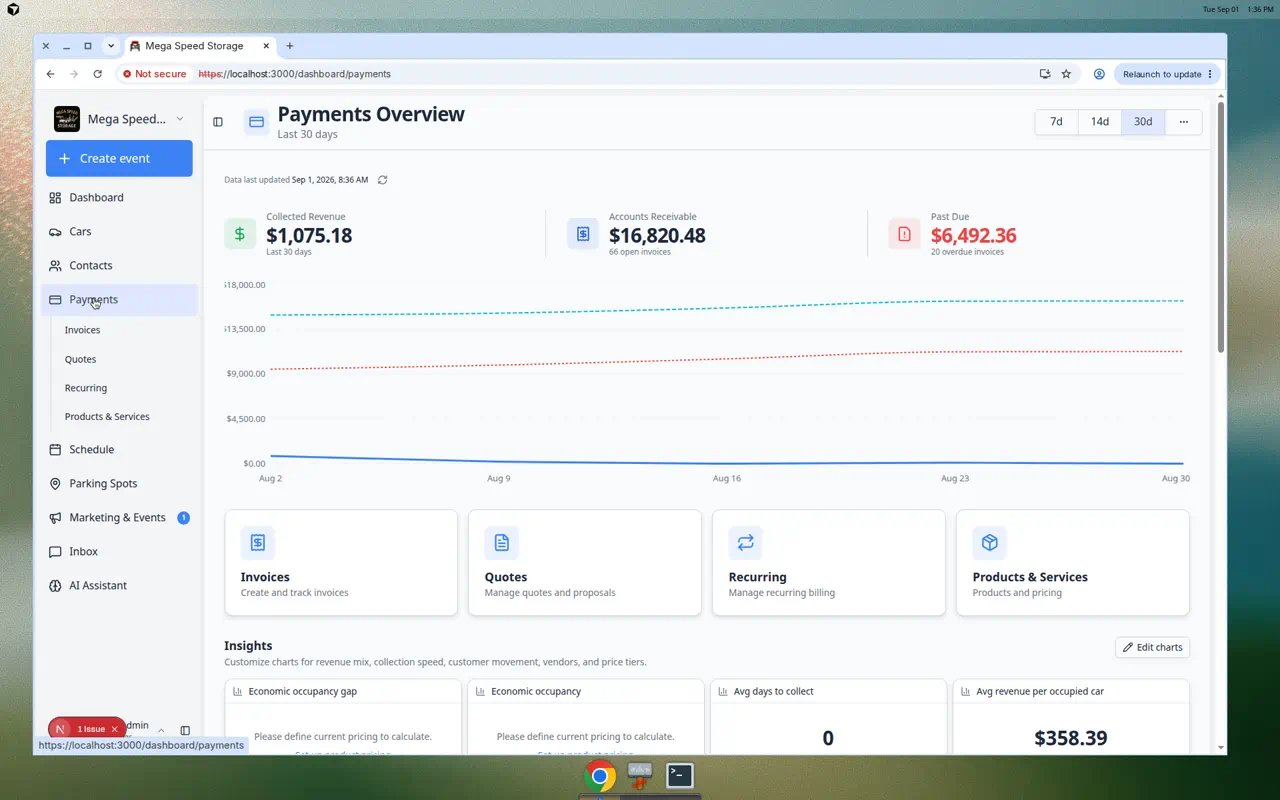
- Who still owes us money?
- Which quotes are waiting for a customer?
- Which customers have monthly storage charges?
- What services can we bill for?
- Which vendor invoices need review?
Your first week with Payments
Use this path when your facility is new to billing in Car Storage Software. Each step builds on the last.1
Day 1 — Connect payments (admin)
An owner or admin finishes Connect payment processing in Settings > Billing.Expected result: The blue setup banner on Payments pages disappears and Create invoice works.
2
Day 2 — Set up products
Follow Manage products and services so your team has reusable line items (for example Monthly Climate Storage).Why this matters: Invoices, quotes, and recurring plans all pull from products—you type less and make fewer mistakes.
3
Day 3 — Practice one invoice
Create a test invoice with Create an invoice for an internal customer. Save as Draft first if you are nervous.Expected result: You see the invoice on Payments > Invoices with Draft status.
4
Day 4 — Learn statuses and follow-up
Read Review a customer invoice, then practice Send and collect customer payments.Expected result: Your team knows what Open, Paid, and Past due mean before talking to real customers.
5
Before month-end
Open Use the Payments overview dashboard and Review the Invoices Report with your owner or bookkeeper.Expected result: Everyone agrees where to look for revenue totals and Excel export.
Before you use Payments
- Your team should have payment processing set up in Settings > Billing. An owner or admin usually completes this once for the whole facility.
- Create customer records in Contacts before sending invoices, quotes, or recurring charges.
- Create products or services first if you want reusable pricing instead of typing custom line items each time. See Manage products and services.
- Ask your facility owner or manager which teammates are allowed to create charges, issue credits, or approve vendor bills.
What you see before payment processing is enabled
If your facility is new to Car Storage Software, several Payments pages may look empty or show a blue banner that says Stripe payments are not enabled for your team. That is normal until an owner or admin finishes setup.1
Open Settings > Billing
In the dashboard sidebar, click Settings, then Billing. You can also open Settings > Billing directly.Why this matters: Online invoices, quotes, and recurring charges need a connected payment account before customers can pay from email links.
2
Finish Connect payment processing
Follow Connect payment processing with your facility owner. This is usually a one-time setup.Expected result: Payments pages stop showing the setup warning, and buttons such as Create invoice and Add Product open full forms instead of blocking you.
3
Set up products before heavy billing
After payments are enabled, create your reusable pricing in Products & Services before your team sends many invoices or recurring plans. See Manage products and services.
Vendors are under Contacts, not Payments tabsThe Payments area includes Invoices, Quotes, Recurring, and Products & Services. Vendors (outside detailers, transport companies, and contractors) live under Contacts > Vendors in the sidebar. Old bookmarks to
/dashboard/payments/vendors still work—they redirect to Contacts.Understand the revenue cards at the top
The Payments overview shows three summary cards. They help owners and managers spot billing problems early—without opening every invoice one by one.Collected Revenue — Money your facility has already received in the time range you selected (7 days, 14 days, or 30 days). This answers: “How much came in recently?”Accounts Receivable — Money customers still owe from open invoices. This answers: “How much is outstanding right now?”Past Due — Open invoices that are past their due date. This answers: “Who is late—and needs a friendly follow-up?”
1
Open Payments overview
Go to Payments in the sidebar.Expected result: You see the three cards near the top. They may show Loading… for a few seconds on a busy day—wait until numbers appear.
2
When Past Due is high
Open Payments > Invoices, click Customer, and sort or filter for Open invoices past their due date. Follow Send and collect customer payments for each customer who still owes money.Why this matters: Past due storage fees add up quickly. A short weekly check prevents surprises at month-end.
3
When Accounts Receivable looks wrong
Compare the total to your open invoice list. One large draft invoice, a duplicate bill, or a customer who never received email can inflate the number. Start with Review a customer invoice on the biggest open rows.
Money in vs money out
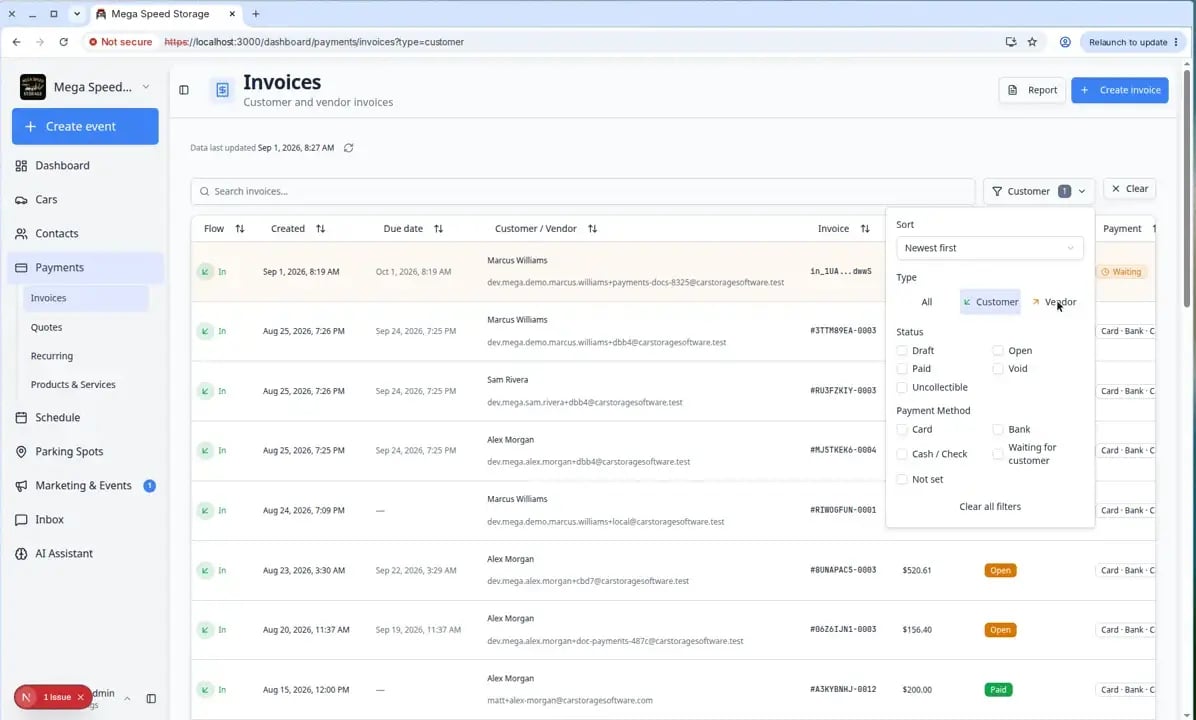
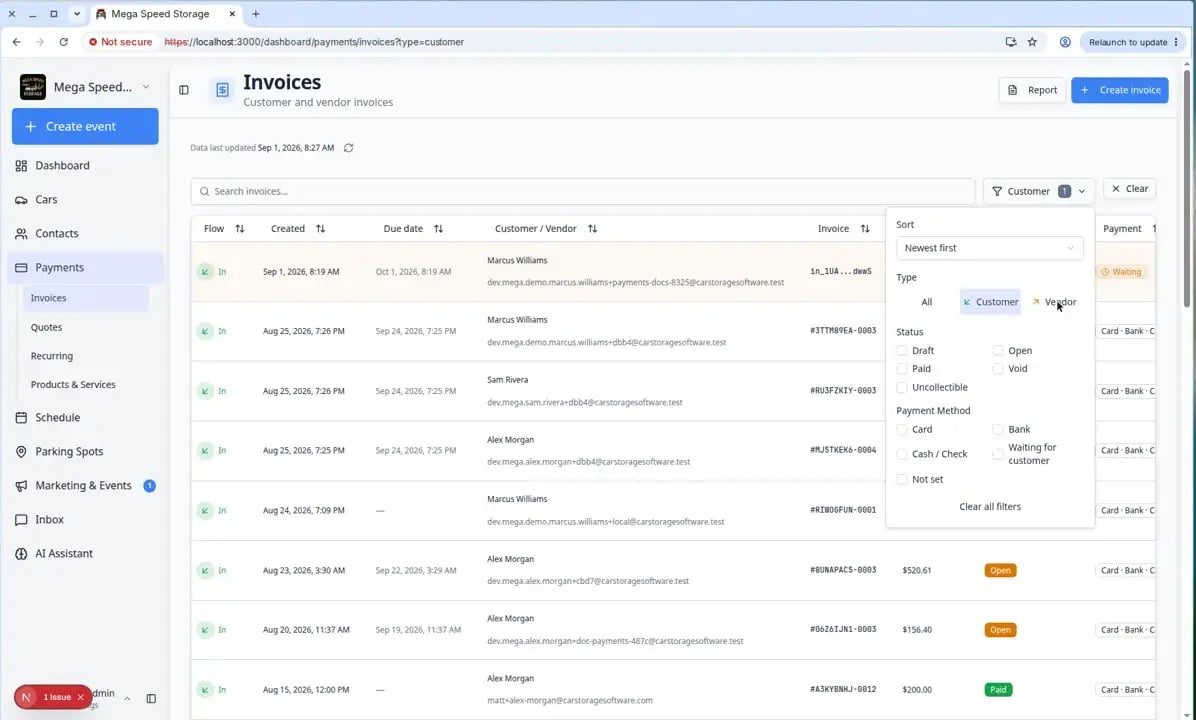
Customer invoices (money in) — Bills your facility sends to customers. You create them, send them, and collect payment. Open Invoices, click Filters, then under Type choose Customer.Vendor invoices (money out) — Bills outside providers send to your facility (detailers, transport, mechanics). You review the file, approve it, and record payment outside the app. Open Invoices, click Filters, then under Type choose Vendor.
Quick start by job
Use the Payments overview dashboard
The first page under Payments is an overview—not the invoice list. It helps owners and managers answer “how are we doing?” before they drill into one customer.1
Open Payments in the sidebar
Click Payments (not a sub-item). You land on Payments overview.Expected result: You see revenue summary cards and shortcuts to Invoices, Quotes, Recurring, and Products & Services.
2
Read the summary cards
Cards such as Collected Revenue, Accounts Receivable, and Past Due update for the date range you pick.Why this matters: Past Due tells you who needs a friendly follow-up call without opening every invoice row.
3
Use the shortcuts below the charts
Click a card to jump to the right workspace—for example Invoices to chase open bills or Recurring to check monthly storage plans.Expected result: You leave the overview and land on the list page for that job.
Choose the right Payments page
1
Use Invoices when a customer needs to pay now
Open Invoices to create a bill for storage, service, amenities, or one-time work. Use this when you know the amount and are ready to send, save, resend, or collect payment on an invoice.
2
Use Quotes when a customer needs to approve pricing first
Open Quotes when the customer should review pricing before your team starts work or sends an invoice.
3
Use Recurring for repeat charges
Open Recurring for monthly storage, memberships, service plans, or any charge that should repeat on a schedule.When many customers need the same price or billing date change, select up to 10 plans on that page and use Update Prices or Change Billing Date. See the bulk section in Manage recurring billing.
4
Use Products and Services for reusable pricing
Open Products & Services to create the items your team adds to invoices, quotes, checkout, and recurring plans.
5
Use Contacts > Vendors for outside service providers
Open Contacts > Vendors to track detailers, transport companies, mechanics, contractors, and vendor payment setup. Vendor bills themselves are reviewed on Invoices using Filters → Type → Vendor.
6
Use Vendor invoices when your facility needs to pay an outside provider
Open Invoices, then click Vendor if needed. Use this when a detailer, transporter, mechanic, contractor, or other provider sends your facility a bill.
7
Use Invoices Report for a date-range summary or export
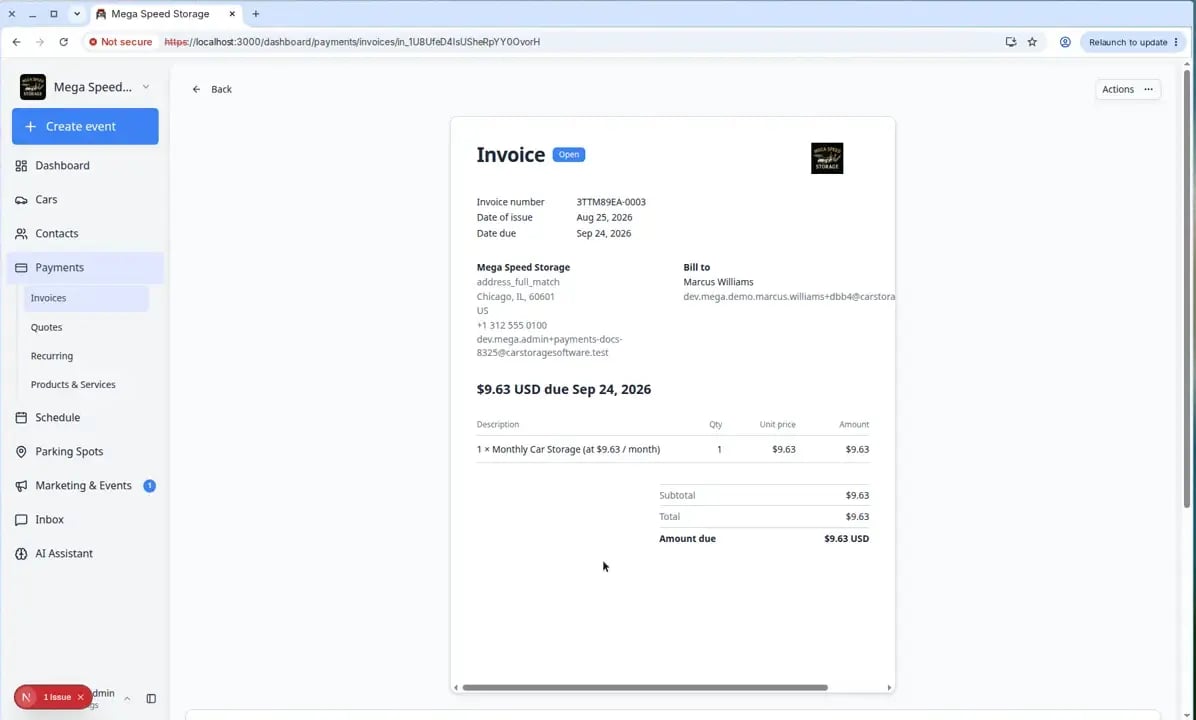
Open Invoices, then click Report, or go to Invoices Report. Use this when an owner or bookkeeper needs totals, overdue counts, or an Excel export for a specific period—not when you are editing one invoice.
Recommended learning path
If your team is setting up Payments for the first time, follow this order:- Manage products and services so your pricing is ready.
- Create an invoice so your team can bill a customer.
- Review a customer invoice so your team understands statuses before collecting payment.
- Send and collect customer payments so your team knows how to follow up after the invoice exists.
- Create a quote so your team can send pricing for approval.
- Manage recurring billing so storage and memberships bill on time.
- Manage vendors so outside providers can be tracked clearly.
- Review and pay vendor invoices so vendor bills are handled consistently.
- Review the Invoices Report when managers or bookkeepers need date-range history or Excel export.
All Payments how-to guides
- Create an invoice
- Review a customer invoice
- Send and collect customer payments
- Void, credit, or correct an invoice
- Create a quote
- Manage recurring billing
- Manage products and services
- Manage vendors
- Review and pay vendor invoices
- Review the Invoices Report
Common terms in plain English
Invoice means a bill you send to a customer.Quote means pricing the customer can review before you invoice them.Recurring means a charge that repeats, such as monthly storage.Bulk update means changing price or billing date for up to 10 recurring plans at once from Payments > Recurring.Product or service means a reusable item your team can bill for, such as “Monthly Storage” or “Premium Detail.”Vendor means an outside person or company that helps your facility, such as a detailer, transporter, or repair shop.Vendor invoice means a bill that an outside provider sends to your facility.Credit note means a record that lowers what a customer owes on an existing invoice (for example, a fee waiver or partial refund approved by your manager).
Helpful habits
- Use clear names customers will understand, such as “Monthly Climate Controlled Storage” instead of “Storage fee.”
- Review totals before sending anything to a customer.
- Keep customer records up to date so invoices and quotes go to the right email address.
- Use recurring billing for repeat work so your team does not need to remember every charge manually.
- Review vendor invoice files before approving or recording payment.
What success looks like
When Payments is working well for your facility:- Customers receive invoices and quotes by email with links that work on a phone or computer.
- Your team can see at a glance who owes money and which quotes are still waiting for approval.
- Monthly storage and memberships bill on time through recurring plans.
- Vendor bills are reviewed and marked paid so nothing is paid twice by mistake.
Troubleshooting
What to do next
If you only need to bill one customer today, start with Create an invoice. If the invoice already exists and you need to collect payment, use Send and collect customer payments. If you are setting up Payments for your whole team, start with Manage products and services, then Connect payment processing.All Payments guides
- Use the Payments overview dashboard — revenue cards, date ranges, charts, and Insights.
- Create an invoice — bill a customer.
- Review a customer invoice — understand statuses.
- Send and collect customer payments — resend, charge on file, or record cash/check.
- Create a quote — pricing before work starts.
- Manage recurring billing — monthly storage and memberships.
- Manage products and services — reusable line items and capacity.
- Manage vendors — outside detailers and transport companies.
- Review and pay vendor invoices — bills your facility receives.