

What you will accomplish
You will understand what customers see during customer app onboarding—signing storage agreements and uploading insurance or registration—so you can coach them by phone or email and confirm everything landed on their record. This guide covers the customer portal experience. Staff turn onboarding on in Attach contracts to customer workflows.When to use this guide
- A new customer just received a portal invite and will sign in for the first time.
- They are stuck on Contract Signing or Document Upload during onboarding.
- You enabled onboarding steps and want to describe what happens next before the customer calls.
- A customer says “the app won’t let me finish setup.”
Before you start
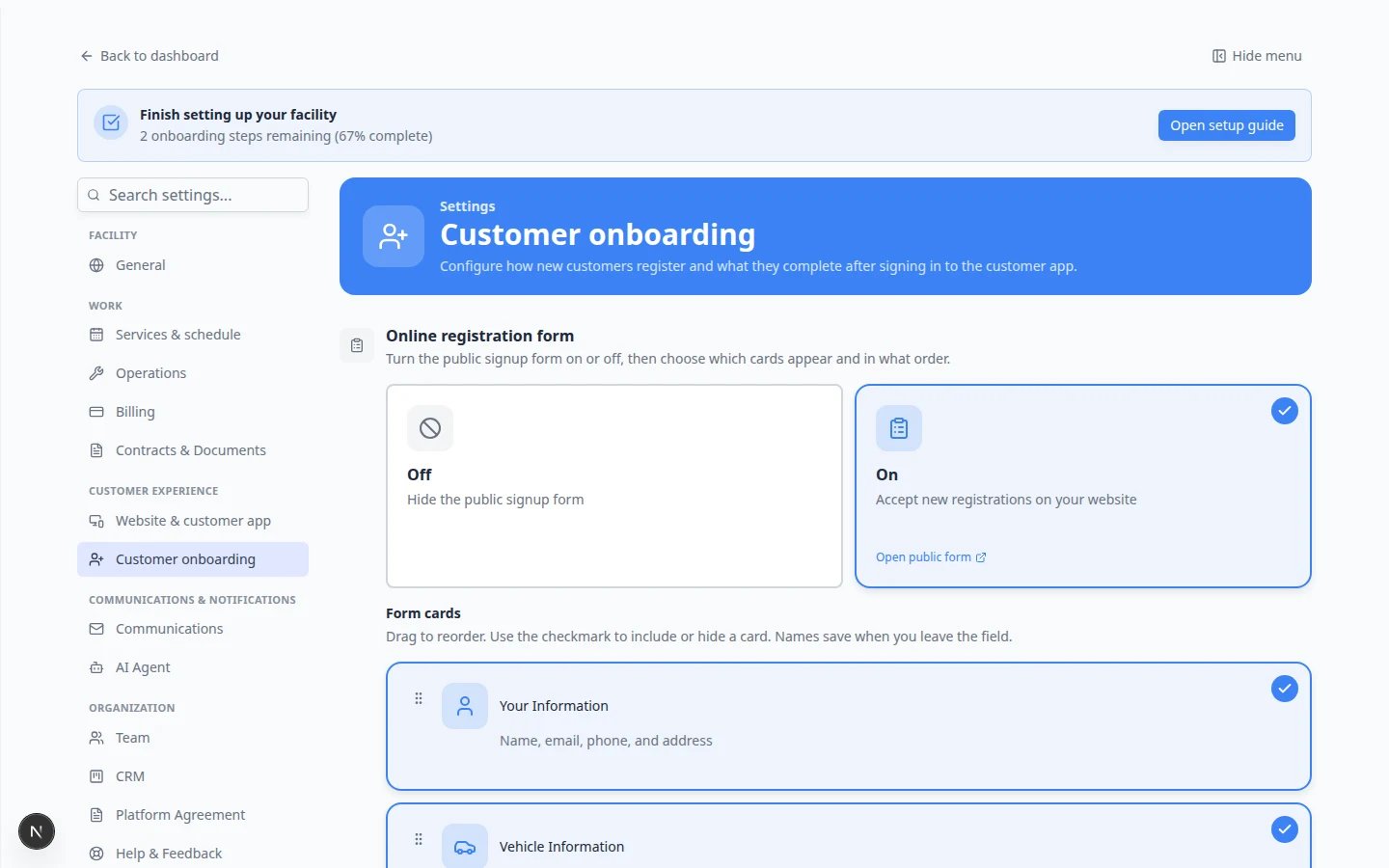
- Onboarding is configured in Settings > Customer onboarding (see Attach contracts to customer workflows).
- Contract templates and document types are ready in Settings > Contracts & Documents.
- The customer’s email on their record is correct—they sign in with a link sent to that address.
- You know which steps you turned on: Cars, Document Upload, Contract Signing, or others.
What the customer sees first
After the customer opens their portal invite and signs in, they may enter customer app onboarding before the main portal menu. The onboarding screen walks through steps your team enabled—such as profile details, Cars, Document Upload, and Contract Signing. The order on your settings page is the order customers follow (with automatic adjustments when a contract needs vehicle details first).
Onboarding only shows onceCustomers who already finished onboarding—or who were set up entirely by staff—usually go straight to the portal home. This guide is for first-time portal users going through your enabled steps.
Step 1: Cars before vehicle contracts
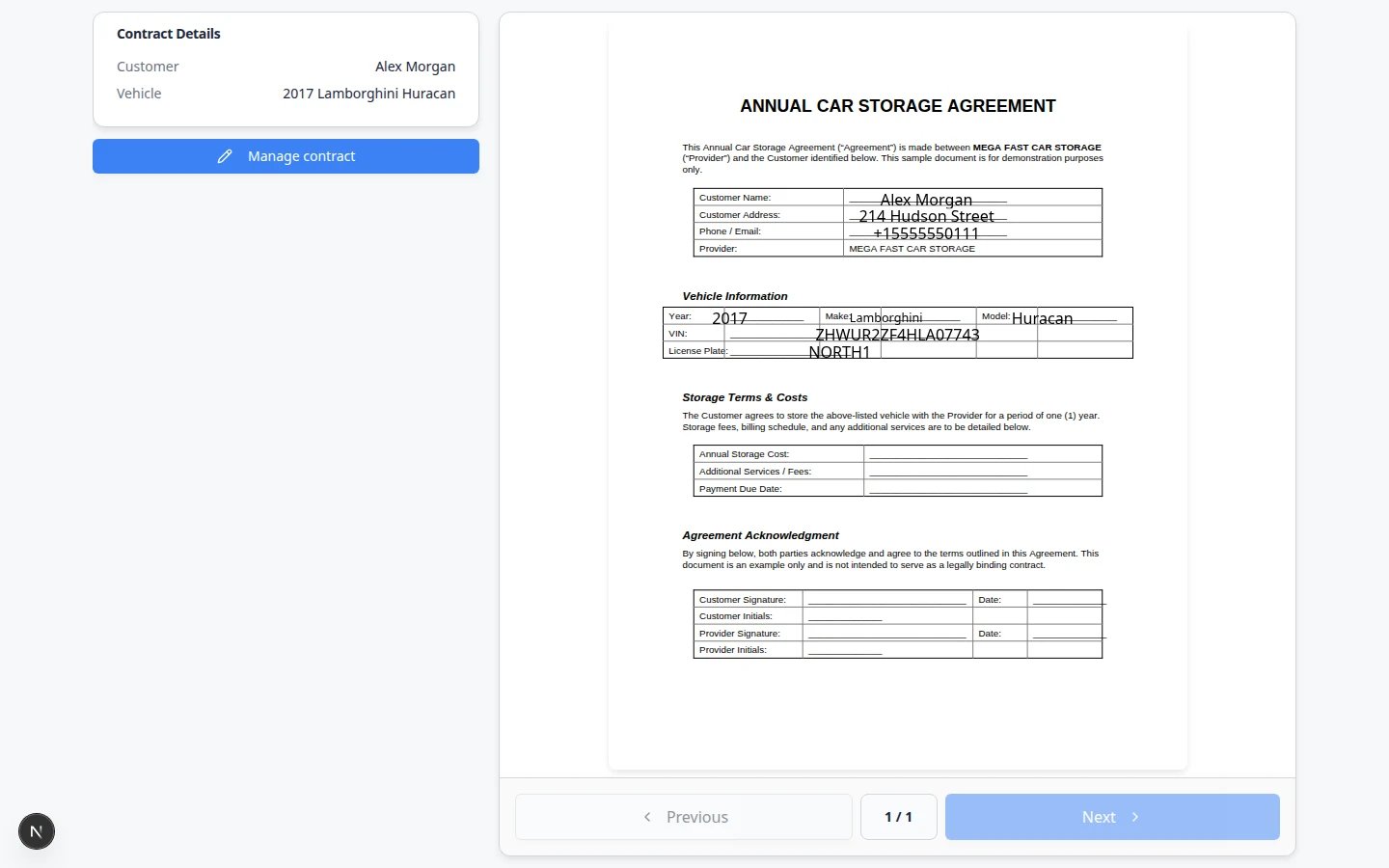
If your storage agreement includes vehicle year, make, model, or VIN, the customer may need to add their car before signing.1
Look for Add Your Vehicle
The screen title may read Add Your Vehicle. Fields include Make, Model, Year, and optional Color and VIN.
2
Coach them to enter accurate details
Ask them to match the registration or insurance card. Wrong vehicle details flow into the agreement PDF.Why this matters: Fixing a car after signing usually means voiding or replacing the contract—much slower than getting it right here.
3
Tap Continue
When they tap Continue, the app saves the vehicle and moves to the next onboarding step.Expected result: The vehicle appears on their customer record before contract signing opens.
If the customer does not see Add Your VehicleYour facility may have already added the car from the office, or the Cars onboarding step may be turned off. If the agreement still shows blank vehicle lines, stop and fix the car on the customer record before they sign.
Payment step blocks some test environmentsIf your facility turned on a Payment onboarding step, customers may need to add a card or complete checkout before they reach the main portal. In development or when payments are not configured yet, ask your admin to disable the Payment step in Settings > Customer onboarding or finish payment setup in Connect payment processing.
Step 2: Contract Signing during onboarding
When Contract Signing is enabled, customers review and sign required templates.1
Find Sign Your Contract(s)
The customer may see Sign Your Contract(s) with a progress line such as 0 of 1 signed before they start, then 1 of 1 signed after they finish.
2
Tap Review & Sign Now
This opens the same browser signing page used for email links—not a separate app install.
3
Complete location if asked
Some templates require location access in the browser. Ask the customer to choose Allow or Allow While Using This Site, then tap Enable Location or Try Again if the page asks.Why this matters: Location is a template setting your team chose in Create a contract template. Without permission, Sign Contract may stay disabled.
4
Review every page
The customer must view all pages of the PDF. On-screen text may say Review every page before signing or show how many pages are left until signing is allowed.
5
Sign and initial
They draw a signature and initials where required, then tap Sign Contract when the button turns active.
6
Return to onboarding
After signing, they return to onboarding. If the step still shows incomplete, ask them to tap Refresh Status, then tap Continue when Contracts Signed appears.Expected result: The success screen shows Contracts Signed with a Continue button—no refresh needed when everything already shows signed.
Step 3: Document Upload during onboarding
When Document Upload is enabled, customers upload required files before finishing setup.1
Find Upload Document(s)
Each required type appears with its own Upload button named for that document—for example Upload Insurance.
2
Upload each required file
They choose a photo or PDF for each type. Continue stays disabled until required uploads are complete.On a phone, the camera option is often easiest for insurance cards.Expected result: Each type shows the uploaded file name before they move on.
3
Skip for now (if shown)
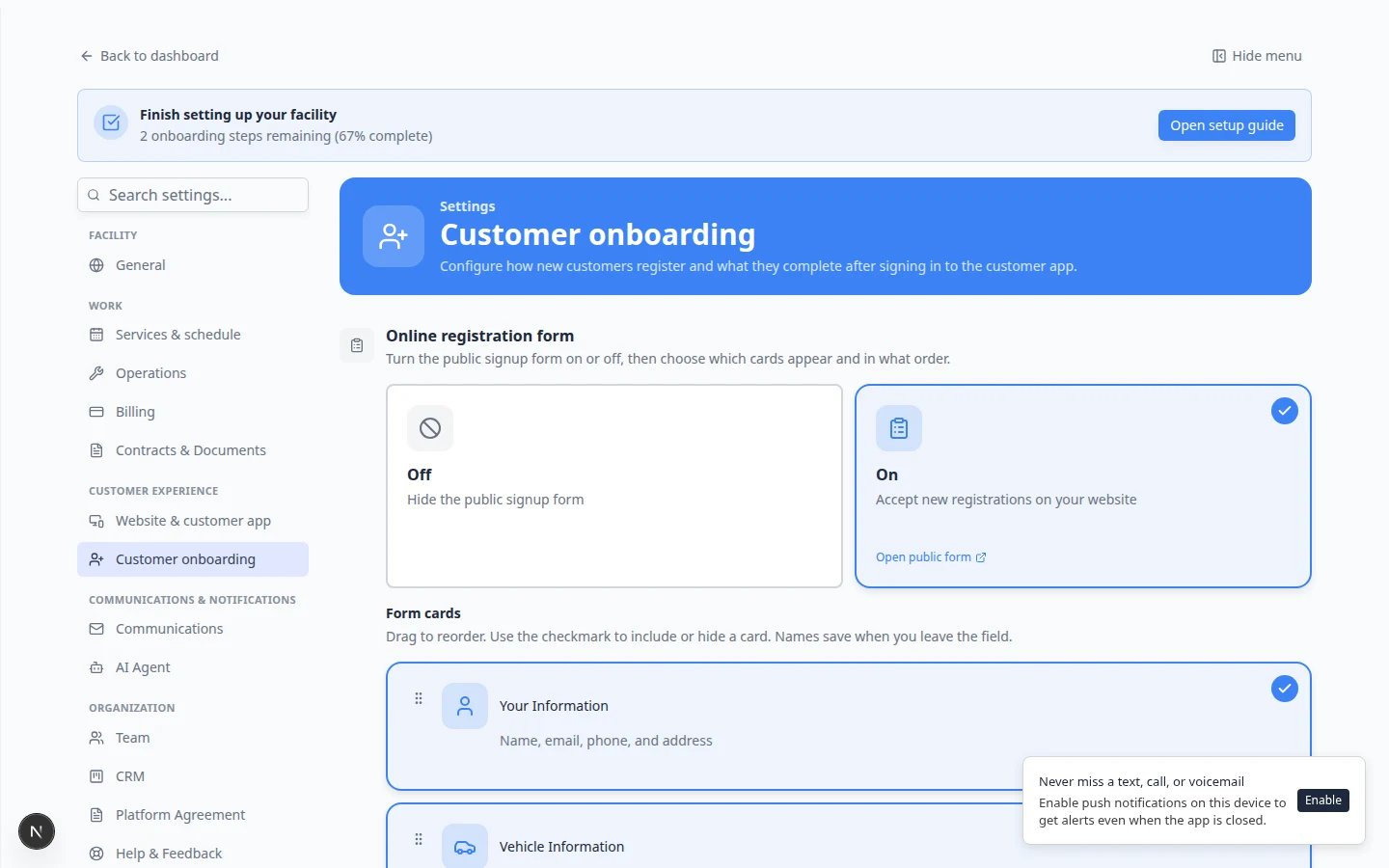
Some facilities allow Skip for now when a type is optional. Required types cannot be skipped.If your team expects every customer to upload, leave required types only in Document Upload step configuration—see the screenshot below.
Step 4: Payment or billing steps (when enabled)
Some facilities require a payment method or product purchase during onboarding. If your team turned on billing steps, customers may see card entry or a product checkout screen before they reach the main portal.What staff should know: Payment steps are configured in Settings > Customer onboarding and Connect payment processing. If a customer says “the app will not let me finish without paying,” confirm with your manager whether that step is required—or whether the customer should choose a listed product.What to say: “If you see a payment screen, that is part of our signup process. Enter the card shown on screen, or call us if you believe you should not be charged during setup.”
Step 5: Confirm from the customer record
1
Open the customer in Contacts
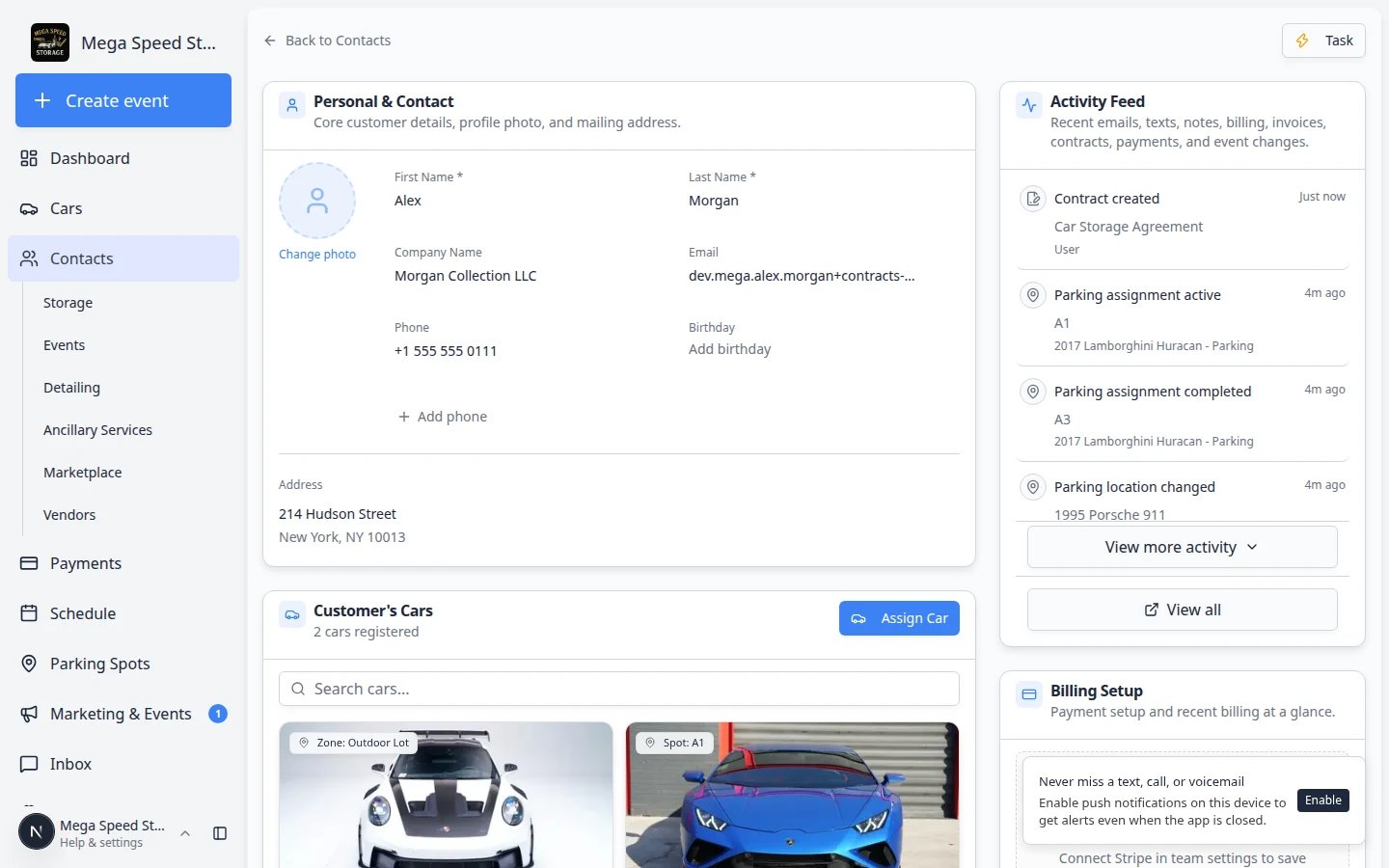
Go to Contacts and open the customer who finished onboarding.
2
Review Documents & Contracts
Confirm signed agreements show Completed (or Signed) and uploads appear with the correct document type labels.Expected result: The section header might show counts such as 2 documents, 1 contract when both uploads and agreements are on file.
What to tell customers who get stuck
“Sign Contract is grayed out” — They may need to scroll through every page, allow location, or add signature and initials.“I do not see my car on the agreement” — They may need to finish Add Your Vehicle first, or staff should fix the car on the record.“Upload button does nothing” — Try a smaller photo, switch from cellular to Wi‑Fi, or use staff upload with Upload a document for a customer.“I already signed but onboarding will not continue” — Ask them to tap Refresh Status on the contract step, wait five seconds, then tap Continue. If it still sticks, sign out and sign in again with the same email link. Confirm on Contacts that the contract shows Completed before you ask them to retry.“I never saw onboarding” — They may have already finished it, or your facility may not require portal onboarding. Check Settings > Customer onboarding.“Stuck on Payment or checkout” — Confirm payments are set up, or turn off the Payment step for customers who pay in person. Staff can still collect paperwork with Upload a document for a customer and Send a contract for signature.
What success looks like
- The customer finishes onboarding without staff entering data for them.
- Required contracts show Completed on the customer record.
- Required uploads appear under Documents & Contracts.
- The customer can use the main portal (events, cars, billing) after onboarding.
What to do next
- Help customers upload documents in the portal for uploads after onboarding.
- Send a contract for signature when one customer needs an agreement outside onboarding.
- Guide a customer through the portal for everyday portal use after setup.