

What you will accomplish
You will learn how to ask the AI Assistant for information that already lives in your facility records—today’s schedule, open parking spots, and customer or vehicle details—without clicking through several dashboard pages.When to use this guide
Use this guide when a staff member needs a quick answer, such as:- “What is on the schedule today?”
- “How many parking spots are open?”
- “Look up Alex Morgan’s cars.”
- “Where is the 2017 Lamborghini Huracan parked?”
Lookups vs creating new records
On a customer phone call (quick scripts)
These short questions work well while a customer is on the line. Type them on the start screen or speak them if your microphone is allowed.Before you start
- Sign in as a staff member with access to the area you are asking about (Schedule, Parking Spots, Cars, or Contacts).
- Know at least one specific detail: customer name, vehicle year/make, license plate, VIN, or date.
- Start New Chat for each unrelated customer or task.
- Plan to open the related dashboard page if you need to edit a record after the lookup.
Ask about today’s schedule
1
Open AI Assistant
Go to AI Assistant. Click + New Chat if you are continuing an old conversation about someone else.
2
Ask in plain language
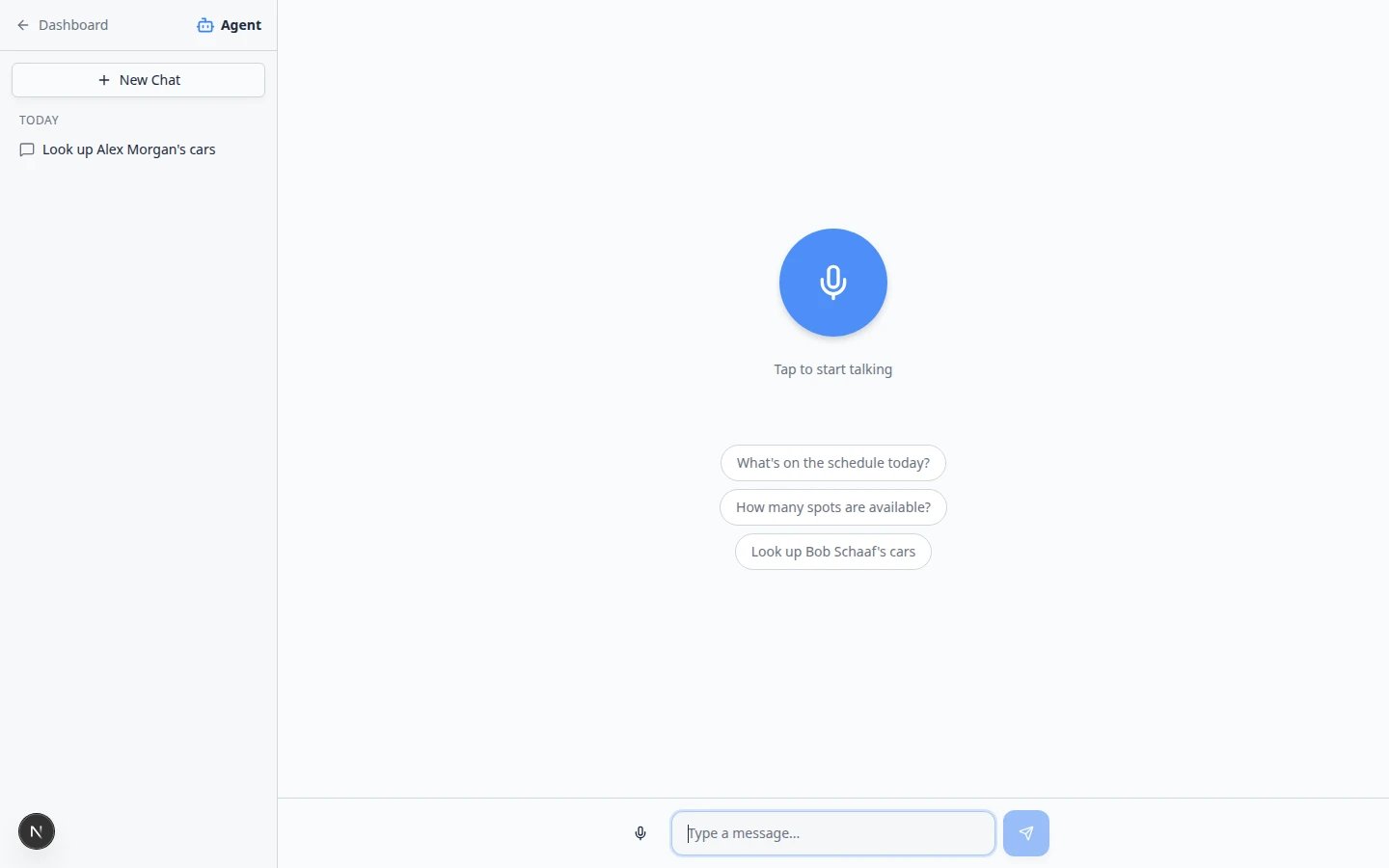
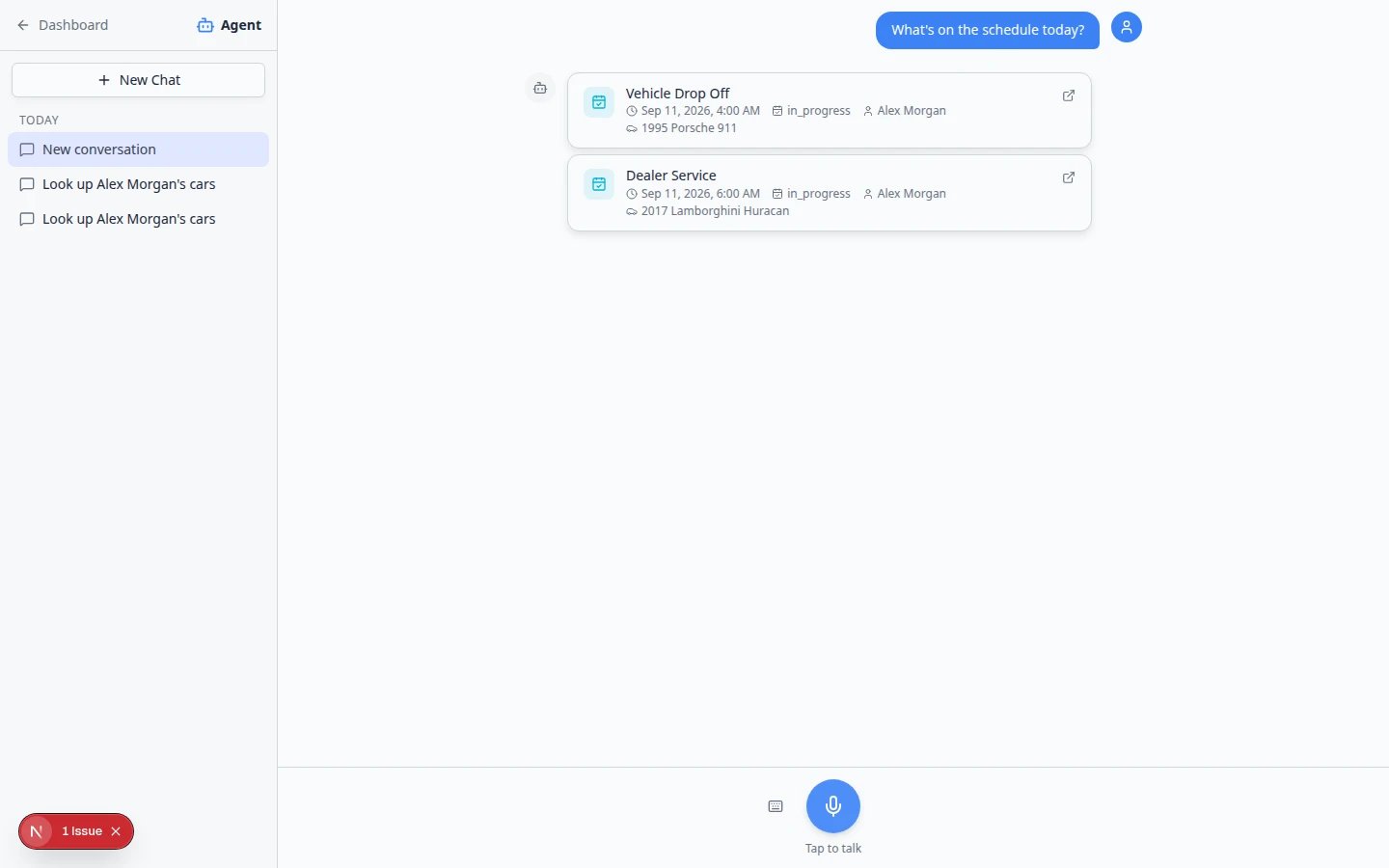
Type or say: What’s on the schedule today?You can also tap the suggested chip What’s on the schedule today? on the start screen.Why this matters: The assistant reads the same schedule your team sees on Schedule.
3
Read the answer
The assistant lists upcoming appointments and events. Check customer names, vehicles, and times.Expected result: You see today’s work in the chat. If something looks wrong, open Schedule and compare.
More schedule questions you can ask
- What appointments does Alex Morgan have this week?
- Is there a drop-off scheduled for the Porsche 911 tomorrow?
- What is on the schedule for Friday?
Ask about one customer’s week
1
Start New Chat
Open AI Assistant and click New Chat when you are asking about a specific person—not a general “today” question.
2
Use the customer's full name
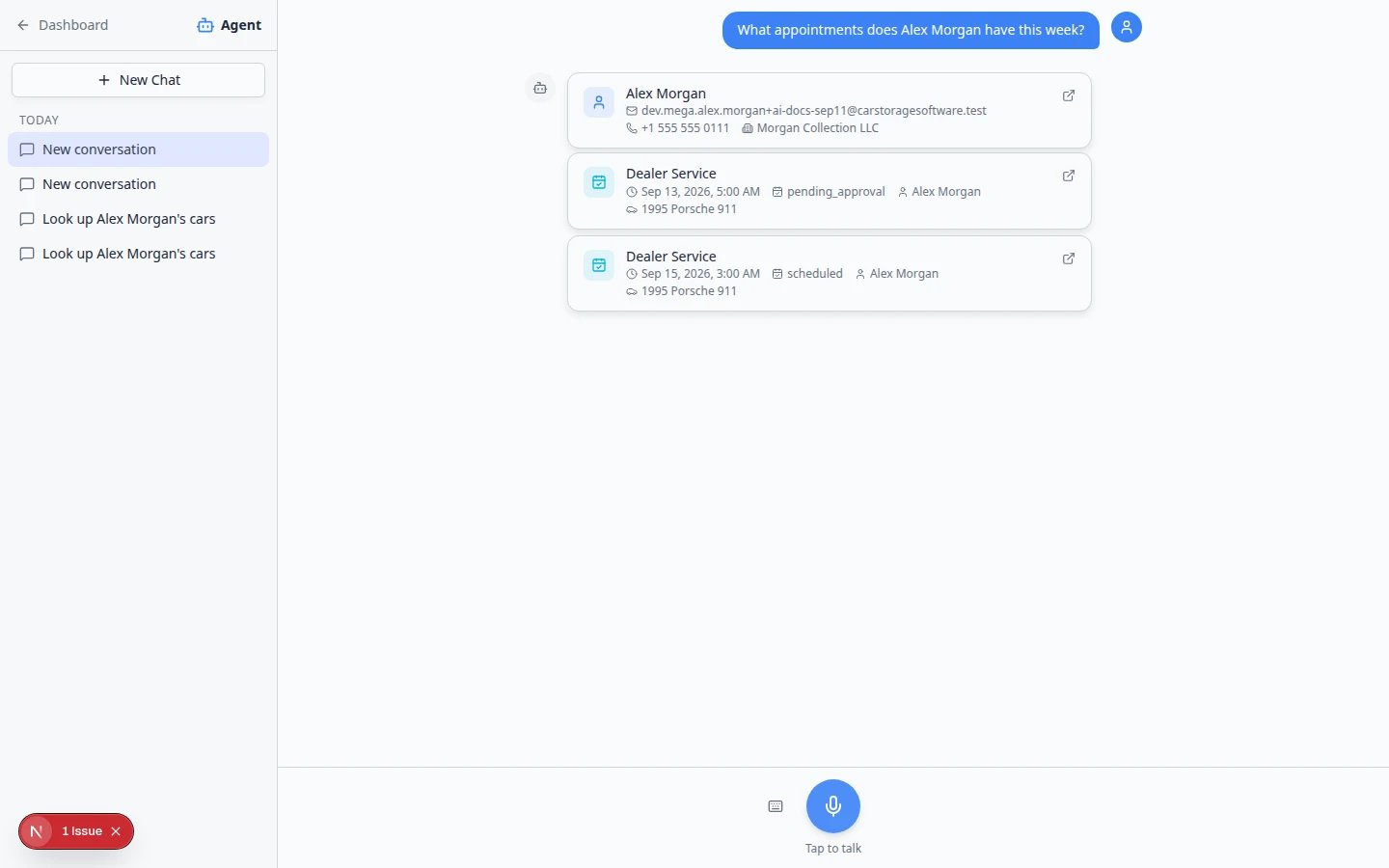
Example: What appointments does Alex Morgan have this week?Expected result: The assistant lists that customer’s upcoming visits with dates, vehicles, and status. Compare times to Schedule before you promise anything on the phone.
Ask about parking availability
1
Start a clear parking question
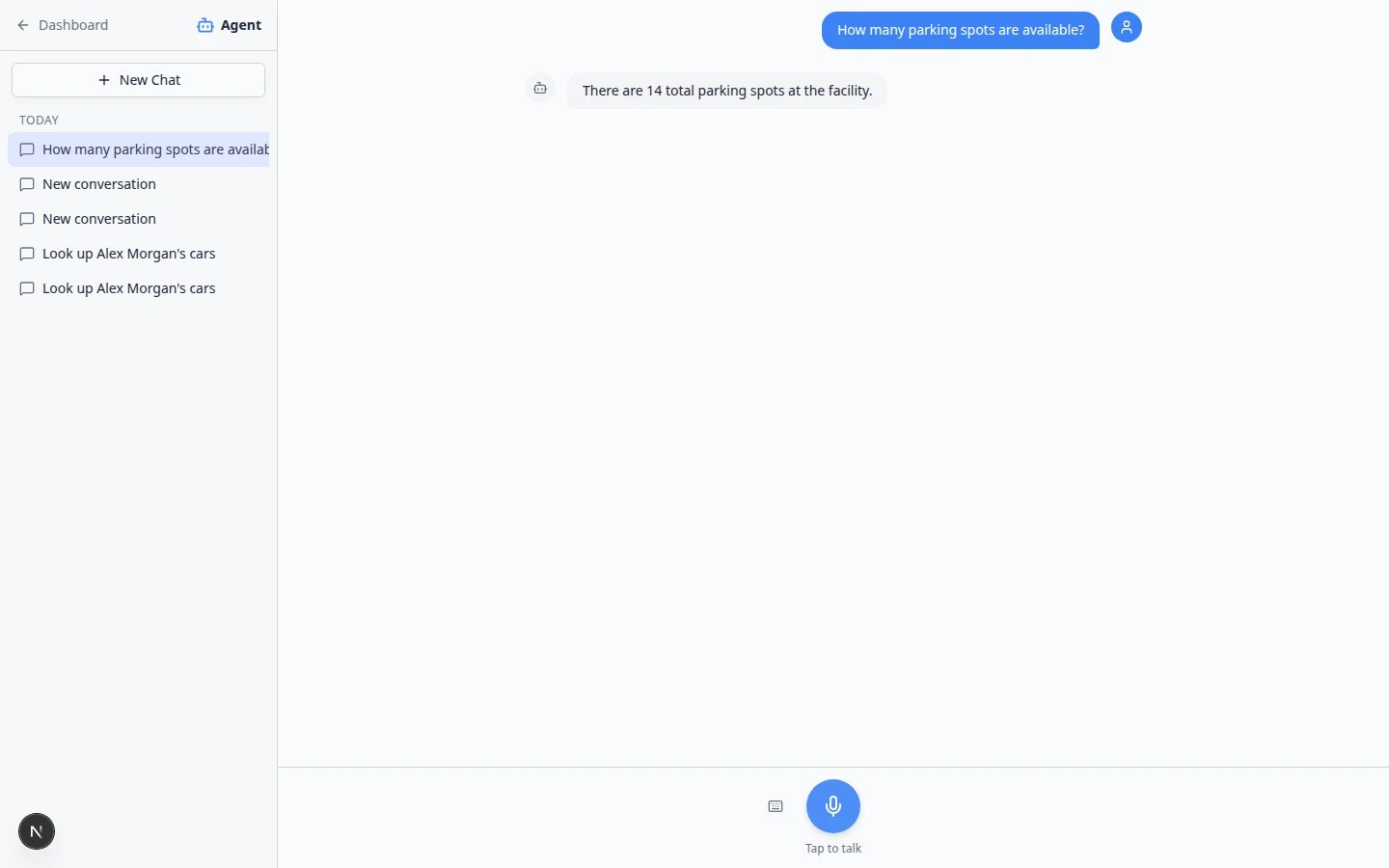
Open New Chat or continue only if you are still talking about the same vehicle.Examples:
- How many spots are available?
- Is spot A1 open?
- Where is the 2017 Lamborghini Huracan parked?
2
Match names to your floor plan
Compare spot numbers and vehicle names to Parking Spots.Why this matters: The map is only helpful when spot names in the app match signs in your building.
3
Assign or move in Parking Spots if needed
If a car moved in real life but the map is wrong, update the spot in Assign a parking spot—the assistant does not move cars for you during a simple lookup.
Common parking mistakes
Spot number vs zoneIf your facility uses zones for flexible areas, ask about the zone name or the specific spot. Example: Is Main Storage full?
Look up a customer or vehicle
1
Use the customer's name
Example: Look up Alex Morgan’s cars.
2
Add vehicle details if needed
If several customers share a last name, add more detail:
- full name
- email address
- year, make, and model
- VIN or license plate
3
Open linked results
When the assistant shows cards or links, open the customer or car page to continue normal work.
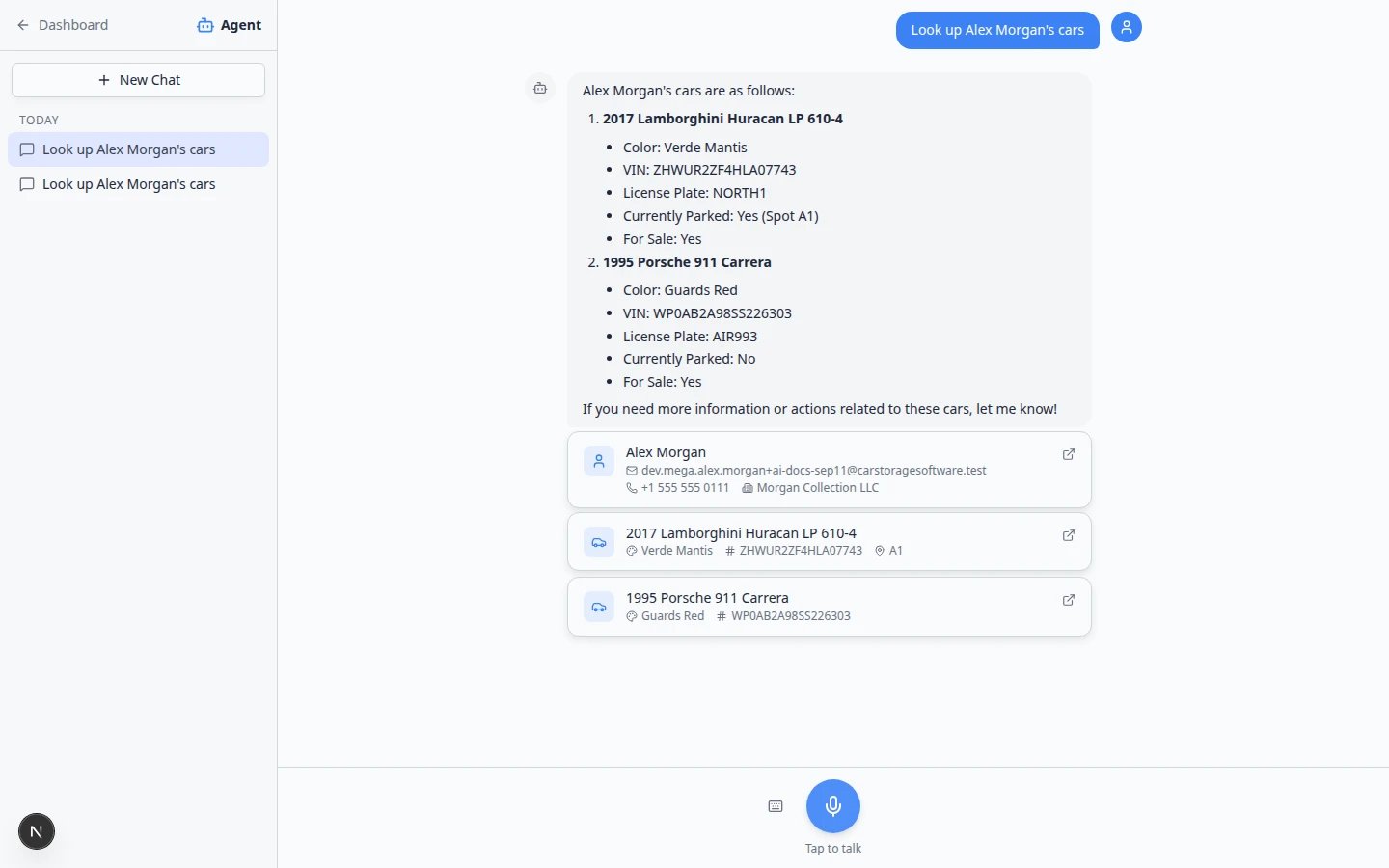
Vehicle-only lookup
You can start with the car instead of the owner. Examples that work well when your records use demo-style data:- Look up VIN ZHWUR2ZF4HLA07743.
- Find the car with plate NORTH1.
- Show me the 2017 Lamborghini Huracan.
- Where is the 1995 Porsche 911 parked?
Look up invoices or open Inbox threads (when you have access)
If your staff role includes Payments or Inbox, you can ask short lookup questions there too. For step-by-step examples and verification habits, read Ask about billing, contracts, and alerts.- Invoices: “Does Alex Morgan have any open invoices?” or “Find invoice for the Huracan.”
- Inbox: “Show recent messages from Alex Morgan.”
When the assistant offers to open a page
Sometimes the assistant finishes a lookup and offers to take you to a dashboard page. A bar may appear at the bottom with a short countdown and buttons Go now and Cancel.1
Watch for the navigation bar
A bar may appear at the bottom with a short countdown and buttons Go now and Cancel.
2
Choose what to do
- Go now — open the page immediately.
- Cancel — stay in the chat if you are not ready to leave.
Phone-friendly questions you can copy
When a customer is on the phone, these short questions work well. Replace the names with your real customer and vehicle records from Contacts.- What’s on the schedule today? — see today’s appointments without opening the calendar filters.
- Look up Alex Morgan’s cars. — list vehicles tied to one customer.
- Where is the 2017 Lamborghini Huracan parked? — find a spot when the customer asks where their car is.
- How many parking spots are available? — quick capacity check before you promise a new arrival.
- What appointments does Alex Morgan have this week? — one customer’s upcoming visits.
Troubleshooting
The assistant says it does not have permission
Your staff role may not include that part of the dashboard. Ask a team admin to review permissions in Settings > Team.The assistant says it cannot find a customer
Try the customer’s full name as it appears in Contacts. Add an email address or phone number if several people share a last name. You can also search manually on Contacts or Cars.The answer mentions the wrong customer
Do not use that answer for customer messages or billing. Ask again with the full name, email, or VIN, or look up the record manually.Nothing is scheduled but you expected appointments
Open Schedule and compare. The assistant reads the same calendar your team maintains. If the calendar shows work but the assistant does not, refresh the chat and ask again—or use Schedule directly on event day. Confirm your facility time zone in Settings > General if times look wrong.Parking shows open but the spot has a car
The map may be out of date. Walk the lot and update Parking Spots, then ask again.Also available on iMessageSome facilities connect a team group chat so staff can ask the same kinds of lookup questions from their phones. Setup is in Use the AI Assistant from iMessage. Creating new records still happens in the dashboard with proposal cards.
What to do next
- Prepare work with the AI Assistant when you want the assistant to draft new customers, cars, or appointments.
- Use the AI Assistant for voice input, follow-up questions, and message drafts.
- Schedule overview to manage the calendar directly.
- Parking Spots overview to keep the floor plan accurate.