

What you will accomplish
You will open a customer invoice (a bill your facility sent to a customer), read its status, and know the right next step—send it, charge a saved payment method, wait for the customer, or record cash or check. Use this guide when you need to double-check an invoice before sending, answer a customer question about what they owe, or figure out why an invoice still shows as unpaid.Customer invoices onlyThis guide is for bills you send to customers. If you are reviewing a bill from a detailer or transport company, use Review and pay vendor invoices and Filters → Type → Vendor on Invoices.
Before you start
- You can open Payments > Invoices.
- You know the customer name or invoice number you are looking for.
- If you plan to change or void an invoice, confirm your facility’s policy with a manager first.
Find the invoice on the list
1
Open Invoices
Go to Payments > Invoices.Expected result: You see the Invoices page with tabs near the top.
2
Filter to customer invoices
Click Filters. Under Type, choose Customer so you only see bills sent to customers—not vendor bills from outside companies.Why this matters: Vendor bills use a different workflow. The Type filter keeps you on the right list.
3
Search if needed
Use the search box for customer name, email, invoice number, or invoice ID.At the bottom of the list, choose how many rows appear at once (25, 50, or 100). That choice is saved for your account.Expected result: The invoice you need appears in the table.
4
Use Report for many invoices at once
When a manager needs a spreadsheet-style view, click Report in the top-right area of the page instead of opening rows one by one.Why this matters: Report is built for month-end reviews, exports, and sorting many invoices together. This guide focuses on a single invoice at a time.
5
Read Status and Amount before you open a row
Glance at Status and Amount on the list. That often tells you what to do without opening every invoice.Why this matters: A Draft invoice still needs review. An Open invoice is waiting for payment. Paid means you can stop chasing payment.
6
Open the invoice
Click the invoice row.Expected result: The invoice detail page opens with the customer name, line items, totals, and buttons near the top-right.
7
Open Report for many invoices (optional)
If you need every invoice in a date range—not just one row—click Report on the Invoices page instead. See Review the Invoices Report.
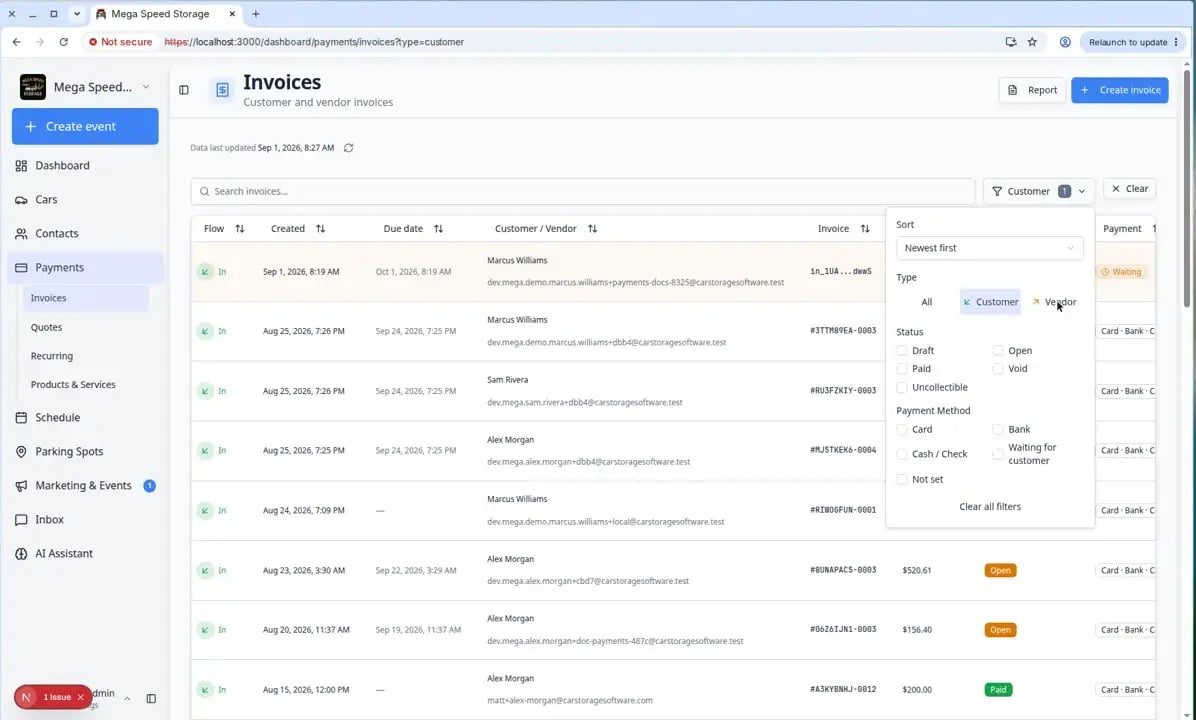
What each status means
Draft — Your team is still preparing the invoice. It is not ready for the customer to pay yet.Open — The invoice is finalized and waiting for payment (online, cash, check, or charge on file).Paid — The invoice has been paid in full.Void — The invoice was canceled and can no longer be paid.Uncollectible — Your team does not expect to collect the money.Waiting for customer — The customer must choose a payment method (or complete a payment preference step) before the invoice can continue.
$0 free trial invoices are hiddenWhen your team pushes billing out on an existing recurring plan, Stripe creates a $0 placeholder invoice with a Free trial for … line. Car Storage Software hides that invoice from invoice lists and the Invoices Report. It sends no receipt email and does not sync to your accounting software. The trial line is also hidden on the invoice detail page and print view. The Stripe-hosted invoice page and PDF may still show it.
What to do for each status
1
Draft — review before sending
Open the draft and read every line item and the total. When it is correct, use Finalize invoice (or the send option your team uses).Why: Drafts let managers catch mistakes before a customer sees the bill.
2
Open — collect or remind
If the customer should pay online, resend the email or share the payment link. If they paid cash or check, use Mark as paid (cash/check). If they have a card on file, you may see Charge payment method on file under Actions.Actions that can email the customer ask Notify the customer? first. Choose Yes to send email, or No to finish the update without emailing.Full steps: Send and collect customer payments.
3
Waiting for customer — send a reminder
Use Remind customer or Send reminder email so they can choose how to pay.If they already arranged another way to pay (for example they will bring a check next visit), turn off Daily reminders on that invoice. This pauses automatic follow-ups for this invoice only. Team reminder settings stay on, and you can still send a reminder by hand.Expected result: The customer receives instructions to complete the payment preference or pay the invoice, unless daily reminders are paused on that invoice.
4
Paid — no collection needed
You can still open the invoice to view payment history or print records for the customer. Do not mark it paid again.
5
Void — invoice canceled
The customer cannot pay this invoice anymore. If they still owe money, your team should create a new invoice or follow Void, credit, or correct an invoice for what happened.
Read a draft invoice detail page
When Status shows Draft, the invoice is still internal. Your team can fix line items before the customer sees anything.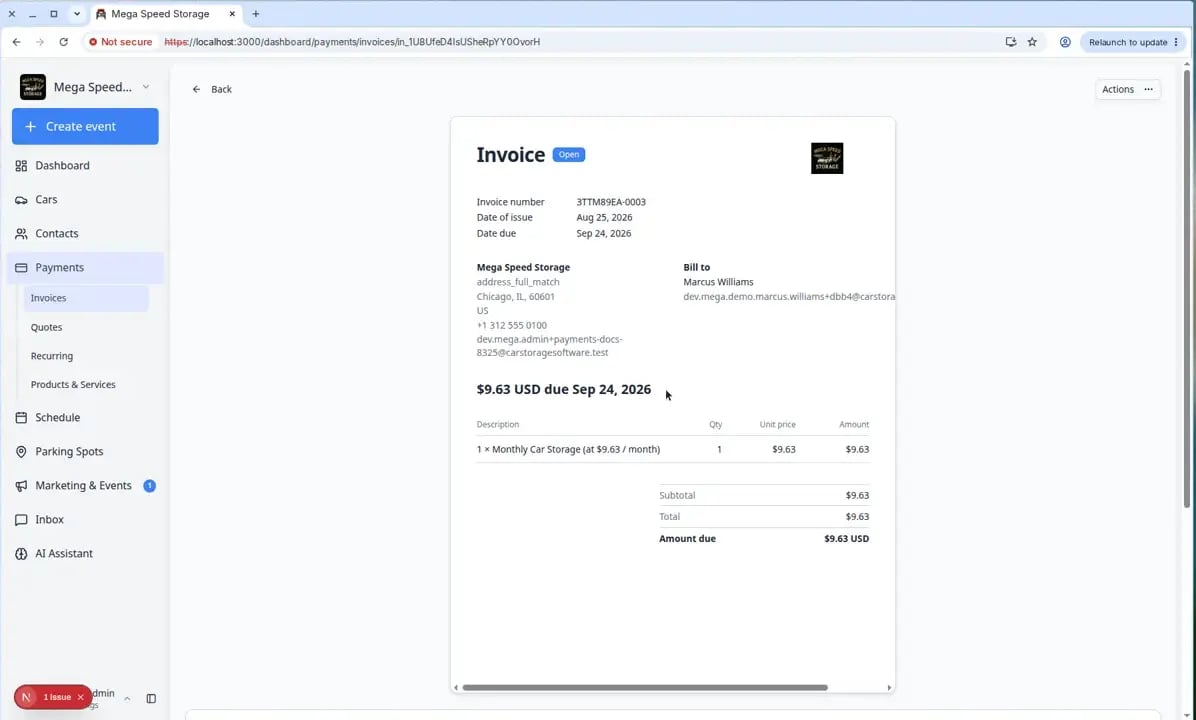
- Customer — Name and email match who should be billed.
- Line items — Descriptions are clear (for example May 2026 Climate Controlled Storage, not just Fee).
- Subtotal, tax, fees, total — Math looks right for your facility’s rules.
- Due date — Matches your agreement with the customer.
Print or save a draft invoice
Stripe does not create a downloadable PDF until an invoice is finalized. You can still print a Draft invoice—or save it as a PDF from your browser—from a dedicated print page.1
Open the draft invoice
From Payments > Invoices (Customer tab), open the invoice with Draft status.
2
Click Print
Near the top-right, click Print. You can also choose Print / Save as PDF from Actions, or from the row menu on the invoices list.Expected result: A print page opens with the invoice laid out for paper.
3
Print or save as PDF
Click Print / Save as PDF, then use your browser print dialog. Choose a printer, or choose Save as PDF / Microsoft Print to PDF.Expected result: You have a paper copy or a PDF of the draft. The invoice stays a draft until someone finalizes it.
Draft copies are for internal reviewA printed draft is useful for a manager review or a customer conversation. It is not the official billed invoice until status changes from Draft.
Read an open invoice detail page
When Status shows Open, the customer can pay (or your team can record payment).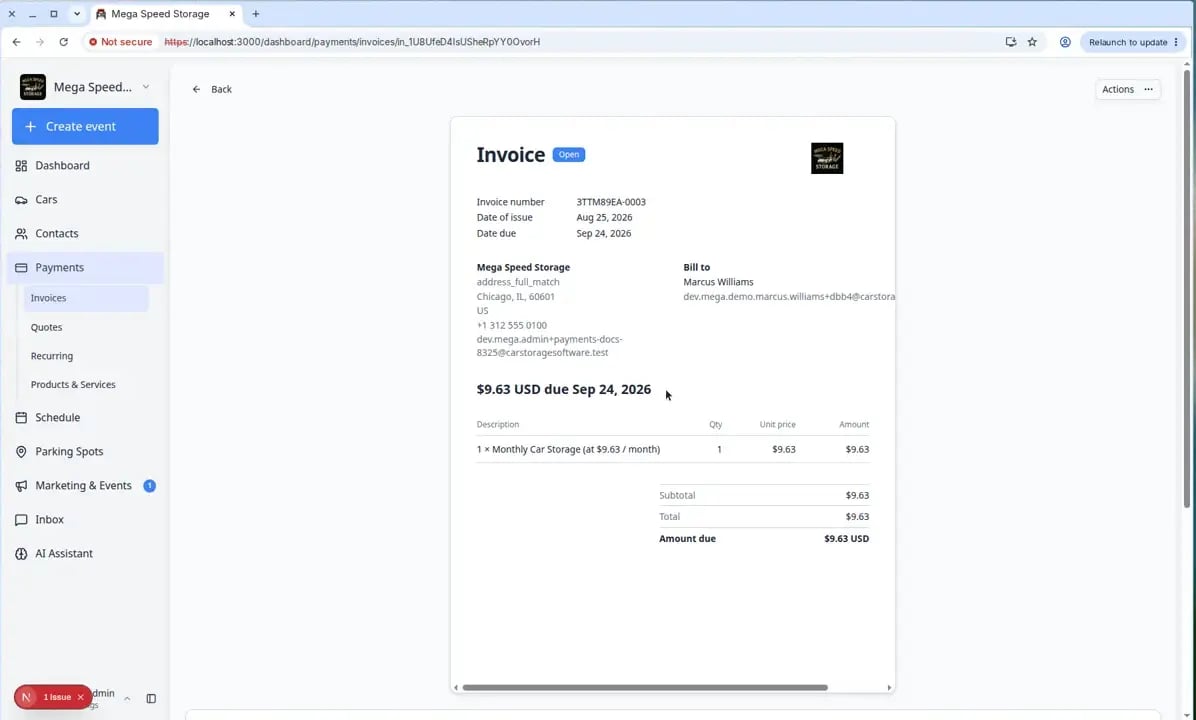
- Status badge — Confirms whether the invoice is Open, Paid, or another state.
- Amount due — What the customer still owes today.
- Line items — Each charge, quantity, and subtotal.
- Payments & transactions — Online attempts, processing state, or recorded cash/check payments.
1
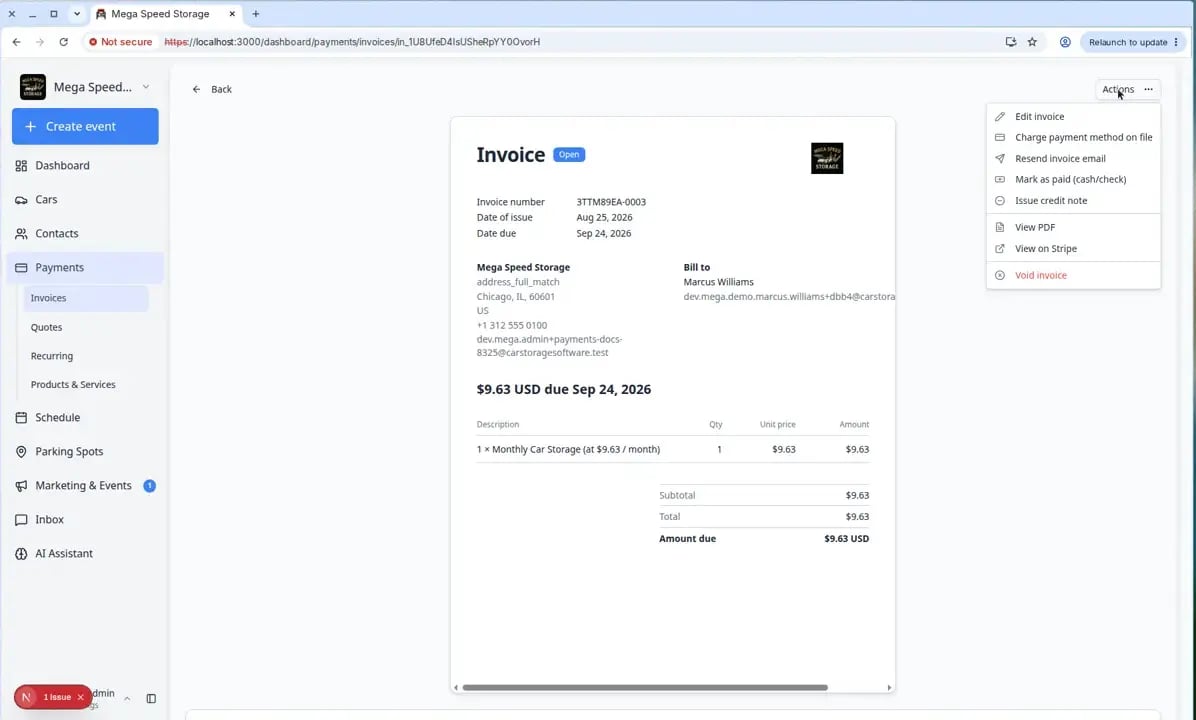
Open the Actions menu on an open invoice
Click Actions in the top-right area.Expected result: A menu opens with choices such as Resend invoice email, Charge payment method on file, and Mark as paid (cash/check).
Issue a credit note (reduce what the customer owes)
Use a credit note when your manager approved giving money back or removing part of a bill—such as waiving a processing fee, correcting an overcharge, or crediting the customer’s account balance.1
Open an Open invoice
From Payments > Invoices (Filters → Type → Customer), open an invoice with Open status.Why this matters: Credit notes apply to bills that are still outstanding. Paid invoices usually need a manager’s guidance before you change anything.
2
Open Actions
Click Actions in the top-right area of the invoice detail page.
3
Choose Issue credit note
Select Issue credit note.Expected result: A window titled Issue credit note opens. You choose whether to credit processing fees only, the full balance, or a custom amount.
4
Pick the credit type
- Credit processing fees only — Removes card or platform fees from the invoice. The customer still owes the service amount.
- Credit full balance — Zeros out the invoice when your manager approved a full credit.
- Custom amount — Credits a specific dollar amount you enter.
5
Add a reason and optional memo
Choose a Reason from the list. Use Memo for internal notes your team should see later (for example “Manager approved fee waiver by email”).
6
Click Issue credit note
Review the summary message at the bottom of the window, then click Issue credit note.Expected result: The Amount due on the invoice drops by the credit amount. Your team can open Payments & transactions to see the credit recorded.
Read a paid invoice
When Status shows Paid, the customer has paid in full (or your team recorded cash or check correctly). No collection step is needed.1
Open the paid invoice
From Payments > Invoices (Filters → Type → Customer), find the row with Paid status and click it.Expected result: The status badge near the top shows Paid. Amount due is zero.
2
Review Payments & transactions
Scroll to Payments & transactions on the detail page. This section shows how the customer paid—online card, bank transfer, cash, or check—and when.Why this matters: If a customer calls asking for proof of payment, this section is the fastest answer.
3
Confirm Amount due is zero
Near the top of the page, check that Amount due shows $0.00 (or your currency’s zero amount) and the status badge still says Paid.Expected result: You see a green or neutral Paid badge, line items from the original bill, and a payment row under Payments & transactions with the date and method.
4
Do not mark paid again
Avoid using Mark as paid or Charge payment method on file on an invoice that is already Paid.Expected result: You can print or share payment details with the customer if your facility allows it, but you do not need to change the status.
When a manager must step in (Void and Uncollectible)
Most front-desk staff should not void invoices or mark them uncollectible without a manager. These statuses are still useful to recognize on the list:Void — The invoice was canceled. The customer should not pay it. A manager usually voids duplicate bills or invoices sent in error.Uncollectible — Your team does not expect to collect the money (for example, after many failed follow-ups). This closes the bill without marking it paid.
1
If you see Void or Uncollectible on the list
Do not resend payment links or mark the invoice paid. Note the invoice number and ask your billing manager what to tell the customer.Expected result: Your manager decides whether to issue a replacement invoice, a credit, or no further action.
Common mistakes to avoid
- Do not confuse Customer invoices with Vendor invoices on the list—they are different workflows.
- Do not mark an invoice paid until you actually received cash or check.
- Do not void or recreate an invoice without manager approval—customers may still have an old payment link.
Troubleshooting
What to do next
- Ready to send, charge, or record payment → Send and collect customer payments
- Need a facility-wide summary or Excel export → Review the invoices report
- Need to create a new bill → Create an invoice
- Monthly repeat charges → Manage recurring billing