

What you will accomplish
You will review every proposal card the AI Assistant prepares, fix mistakes before they are saved, and use Confirm All or a card button such as Create Customer only when the work matches what your customer or team actually needs. Skipping this review can create duplicate customers, wrong appointment times, or incorrect vehicles.When to use this guide
Use this guide whenever you see draft cards such as New Customer, New Car, Appointment, Drop-off, or Move car—usually after a request like Prepare work with the AI Assistant.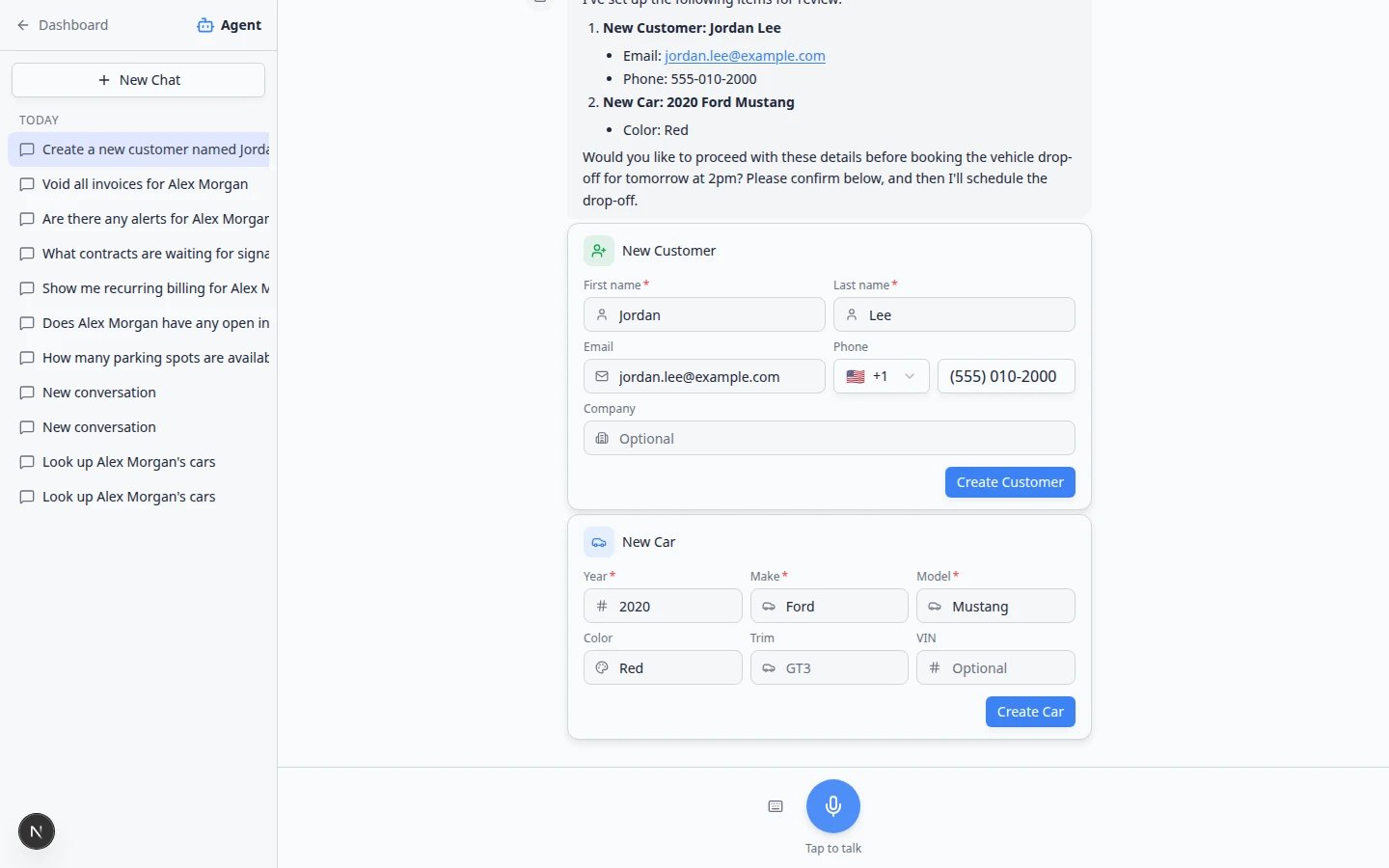
Before you start
- Re-read the customer’s request or internal note.
- Keep email, phone, VIN, date, and time nearby for comparison.
- Check Contacts and Cars for possible duplicates in another browser tab.
- Do not select Confirm All or Create Customer until every card looks correct.
What a proposal card is
A proposal is not saved yet. It is the assistant’s plan. Cards may include:- New Customer — name, email, phone, company.
- New Car for [name] — year, make, model, color, trim, VIN, license plate.
- Update Customer or Update Car — changes to an existing record (batched with Confirm All when grouped).
- Appointment, Drop-off, or Pickup — date, time, customer, vehicle, notes.
- Move car — parking spot or location change.
- Issue account credit — a credit amount applied to a customer’s billing account (requires extra care).
- Message draft — text for you to copy into Inbox; the assistant does not send it for you.
Step 1: Read the assistant’s summary
1
Compare the summary to your notes
The message above the cards explains what the assistant understood.Expected result: The summary matches what the customer asked for on the phone or in email.
Step 2: Review the customer card
1
Check name spelling
Confirm first name and last name. Fields marked with a red asterisk (*) are required.
2
Check contact details
Confirm email and phone. Leave optional fields blank if unknown—do not guess.Why this matters: Wrong contact information leads to failed invoices and missed messages.
Step 3: Review the car card
1
Check year, make, and model
These three fields are required on most car cards.
2
Check color, trim, and VIN
Confirm color and trim when the customer mentioned them. A blank VIN is safer than a wrong VIN.Why this matters: Insurance, transport, and registration paperwork often use the VIN.
Step 4: Review appointment or event cards
1
Confirm date and time
Watch words like “tomorrow” and check your facility time zone in Settings > General.Why this matters: A wrong pickup time is one of the fastest ways to lose customer trust. If the card shows an unexpected date, edit the field or start New Chat with the full date written out (for example, Friday, June 27, 2026 at 2:00 pm).
2
Confirm customer and vehicle
Make sure the appointment points to the same person and car you discussed.Expected result: The appointment matches what you promised the customer on the phone or in email.
3
Confirm event type
Drop-off, pickup, and service visits may use different names on Schedule. The label on the card should match what your facility calls that visit.
4
Count the cards before Confirm All
A full intake often needs three pieces: customer, car, and appointment. Read the summary above the cards. If it mentions a drop-off but you only see two cards, wait—or ask in the same chat for the missing appointment card.Expected result: The number on Confirm All matches how many cards you reviewed (for example Confirm All (3)).
Step 5: Review billing cards (if shown)
If you see Issue account credit or other payment-related cards:1
Confirm the customer
The credit must apply to the person you intended—not a namesake.
2
Check the amount and reason
Compare the dollar amount and description to your notes or manager approval.Why this matters: Credits change what a customer owes. Mistakes are harder to explain than a one-minute review.
3
Open Payments if unsure
View open invoices on Payments > Invoices before you confirm.See Ask about billing, contracts, and alerts.
Step 6: Review message drafts (if shown)
If the assistant prepared wording for a customer text or email, read every sentence aloud before you copy it into Inbox.- Customer name is correct.
- Date, time, and location match your notes.
- Tone is professional and friendly for your facility.
- Nothing promises a price or service you cannot deliver.
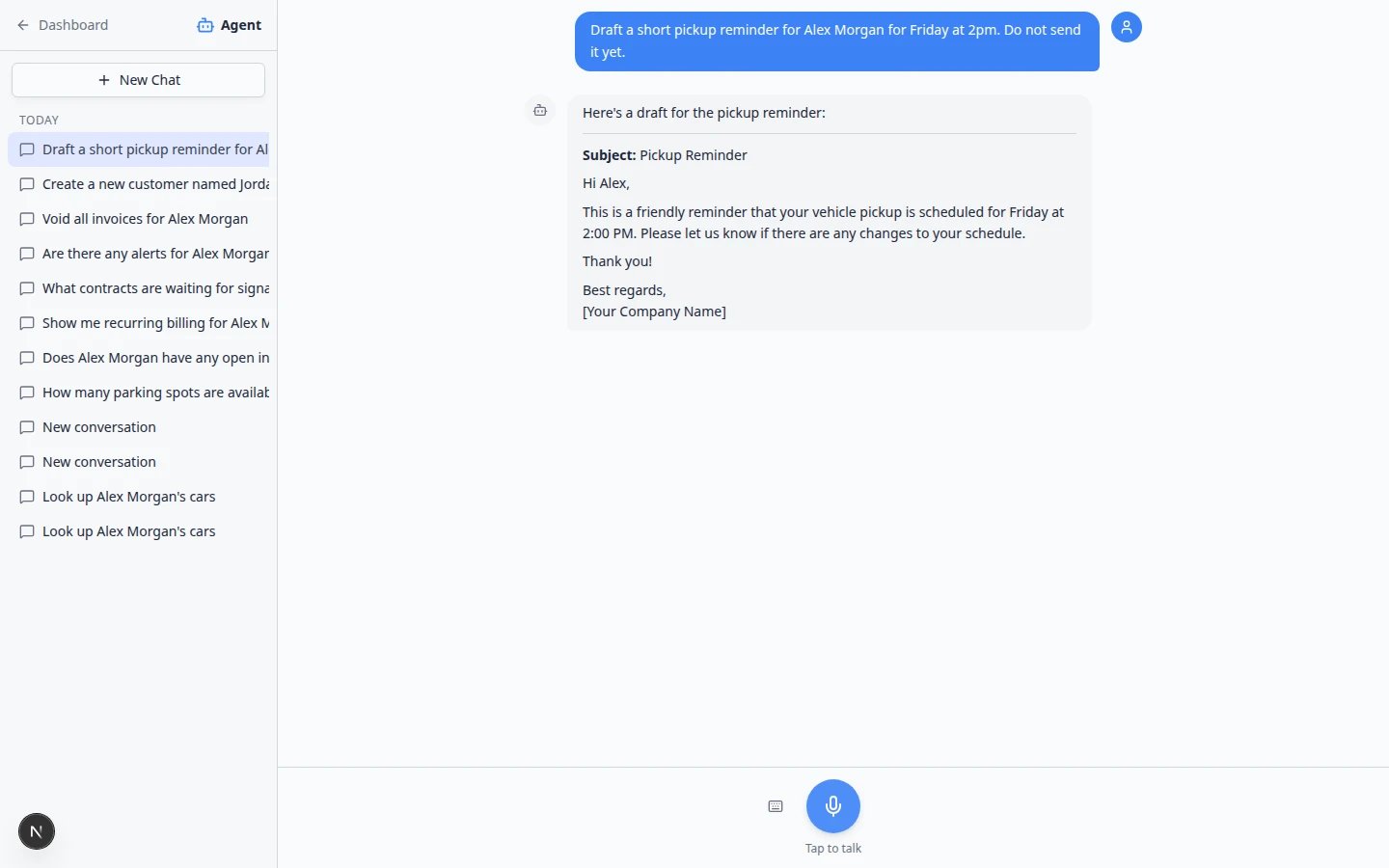
Drafts do not send automaticallyCopy the message into the customer’s Inbox thread and send from there. See Send a text message from Inbox or Send an email from Inbox.
Step 7: Edit wrong or missing fields
Click inside editable fields on the cards to fix typos before you save.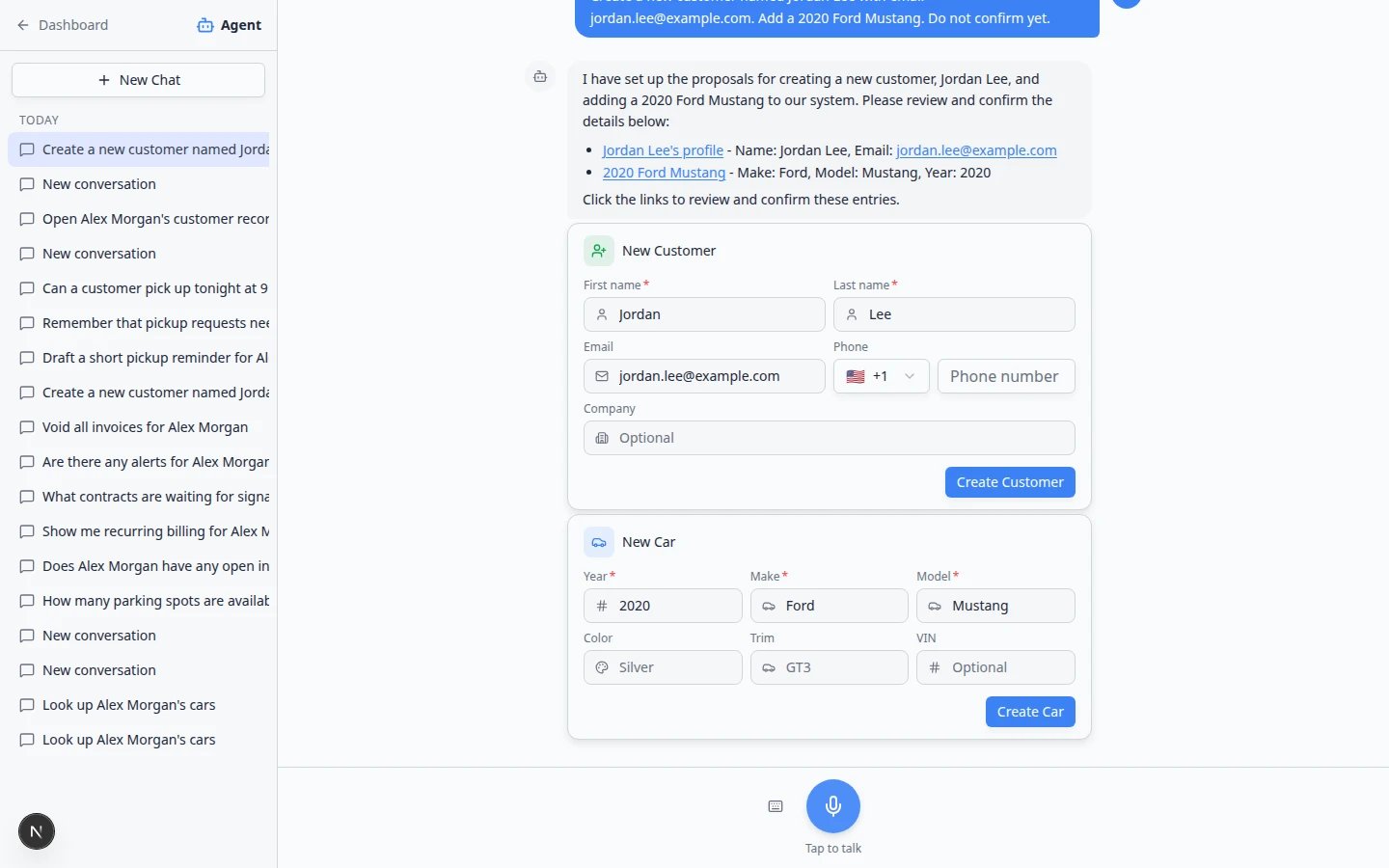
1
Fix errors on the cards
Click inside editable fields and correct them. If you cannot fix a card, do not confirm.Expected result: Every visible field matches your notes before you save.
Step 8: Confirm the proposals
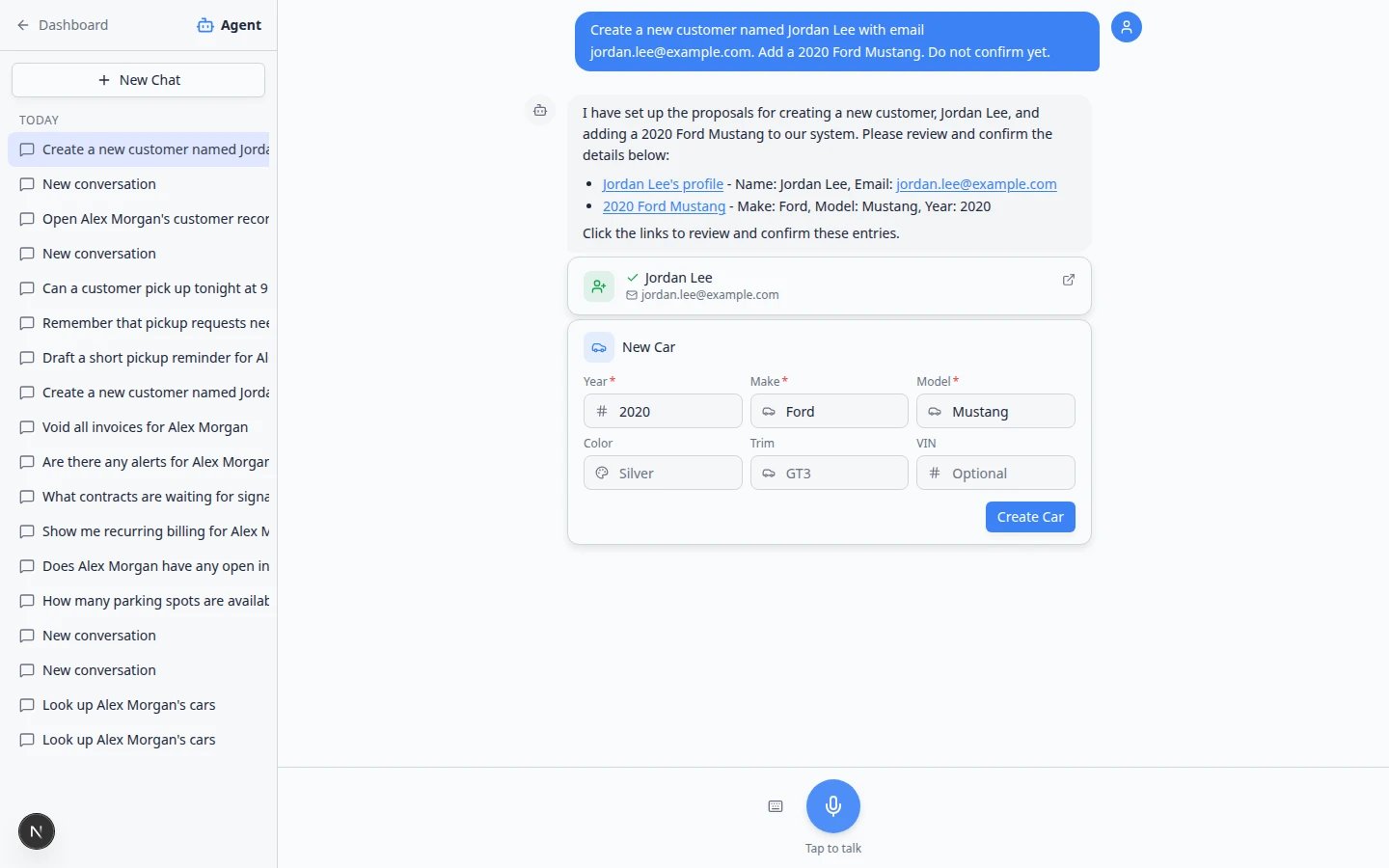
You may see Confirm All (2) when several cards are grouped together, or a single card button such as Create Customer when only one record is ready. Both mean the same thing: nothing is final until you click.
1
2
Save the proposals
Click Confirm All when several cards are ready together, or click the button on a single card (for example Create Customer).Expected result: The assistant shows a success card or a short notification such as Casey Brooks created. You can click the card to open the live record.
3
Verify in the dashboard
Open the customer, car, or appointment and confirm details match.Expected result: Live records match what you approved. A new drop-off appears on Schedule at the time on the card.
When not to confirm
Do not confirm if:- the customer might be the wrong person
- the car may already exist
- the VIN, plate, date, time, or dollar amount looks wrong
- payment terms need a manager
- a customer message was not read word-for-word
- the proposal does not match your facility’s normal process
Quick checklist before Confirm All
- Customer name is spelled correctly.
- Email and phone are correct, if shown.
- Vehicle year, make, model, and VIN are correct, if shown.
- Appointment date and time match the request.
- Parking spot or location is correct.
- Notes are professional and accurate.
- Account credit amount and customer are correct, if shown.
- No duplicate customer or car already exists.
After you confirm
1
Open the customer record
Go to Contacts and search for the customer you just created.
2
3
Assign parking if needed
If the car is on site, follow Assign a parking spot so the map stays accurate.
Troubleshooting
A required field is blank
Fill it in if you know the correct value. If you do not know it, leave it blank or ask the customer. Required fields show a red asterisk (*).The wrong customer or car was selected
Do not confirm. Start New Chat and include full name, email, VIN, or license plate.The date or time is wrong
Edit the field if possible. Otherwise send a clearer message, such as: Book Sam Rivera for Friday, June 5 at 2:00 pm.A card shows Failed instead of a draft
Read the message above the cards. Save or fix the first card (often New Customer), then ask for the next step in the same chat—or start New Chat and send the request again one piece at a time.Confirm All or Create Customer is disabled
Look for empty required fields on the cards (name, vehicle year, make, or model). Fields marked with a red asterisk (*) must be filled in.You confirmed by mistake
Open the record immediately and correct it if your role allows. Ask a team admin for help if needed.Only some cards saved
Rare errors can stop part of a batch. Check each dashboard area (Contacts, Cars, Schedule) and finish missing pieces manually.What to do next
- Contacts for new or updated customers.
- Cars for vehicles.
- Schedule for appointments.
- Parking Spots for moves and spot assignments.
- Inbox if a message draft was part of the request.