

What you will accomplish
- Understand what the Live badge means and how conversations update automatically.
- See when a teammate is typing or on a call in the same conversation.
- Know who sent each outbound message in the timeline.
- Hand off a conversation with Mark unread when follow-up is still needed.
Before you start
- Your team should already have access to Inbox.
- If Inbox buttons are gray, finish setup in Configure communication settings for Inbox first.
- Know when to stay on Overview for a quick glance vs when to open the full Inbox page (see Use Inbox from your Overview dashboard).
What the Live badge means
Near the top of the Inbox page, you may see a Live badge next to the page title.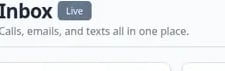
If Live is not showingYour browser may still load new messages when you open a conversation or return to the page. Live is a helpful signal, not a requirement for Inbox to work.
See when a teammate is working in the same conversation
When you open a customer conversation, look just below the customer name at the top of the timeline. You may see a short note such as:- Alex is typing…
- Sam is typing an email…
- Jordan is on a call…
Floating Inbox panel counts tooIf your facility uses the Inbox widget on Overview, the same unread counts appear there. Two people can still answer the same customer if one uses Overview and one uses the full page — agree on who owns the reply.

See who sent each team message
Outbound messages in the timeline—the ones your team sent—often show initials in a small circle next to the message. Why this matters: When a customer replies days later, you can see who handled the last message and whether that person should follow up again. Hover over the initials when your device supports it. You may see the teammate’s name or email.When two people work the same shift
Agree on simple rules before the phones get busy:- One owner per active conversation — whoever starts the reply finishes it, or uses Mark unread and tells the next person.
- Pause when you see typing — if the header says a teammate is typing, wait a few seconds before sending.
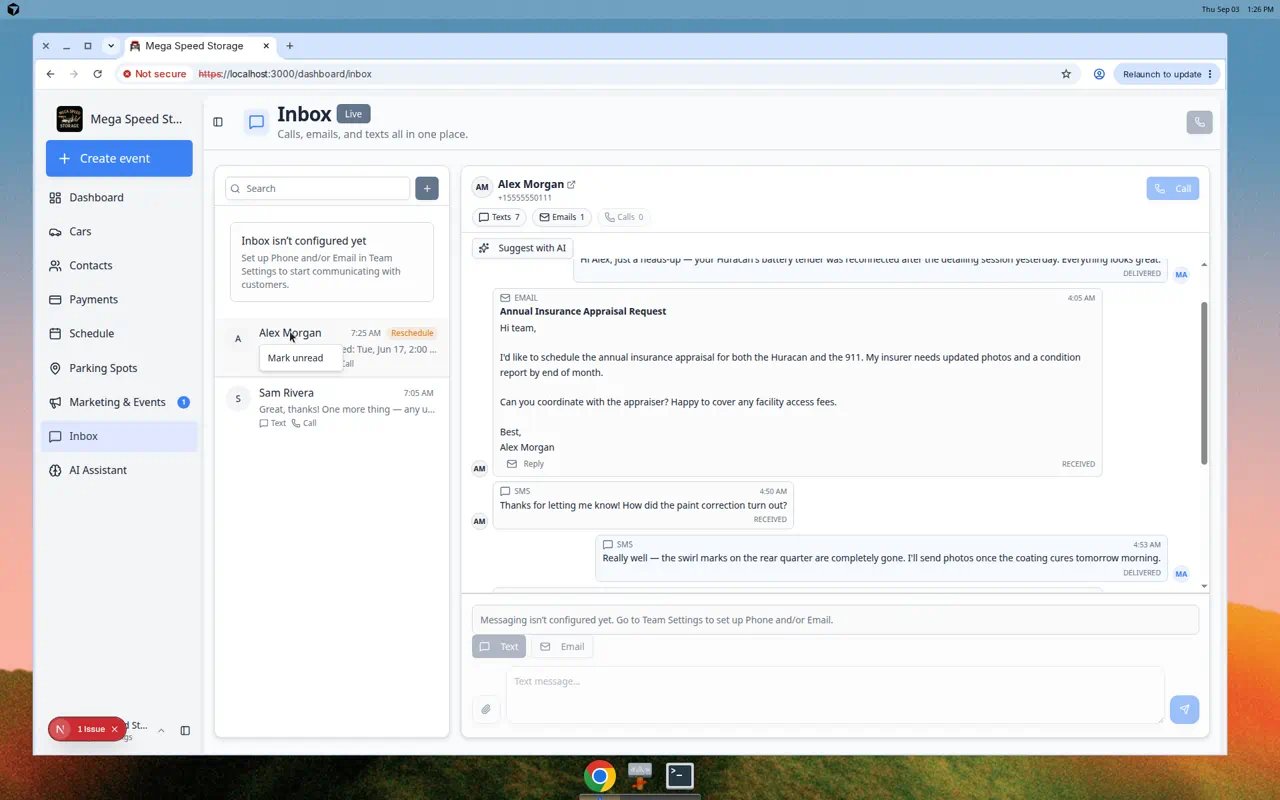
- Check initials on outbound messages — the small circles on sent texts and emails show who last replied (see screenshot above).
- Use Schedule for appointment changes — Inbox is for messages; move appointments on Schedule before you confirm a new time in writing.
How unread messages work
Inbox helps your team spot conversations that still need attention. In the conversation list on the left, unread threads may show:- A blue dot on the customer’s circle
- Bold customer names
- Small numbers on Text, Email, or Call labels when only that channel has unread activity (for example Text 2 means two unread texts)
- An orange Reschedule badge when the latest preview starts with Reschedule proposed:
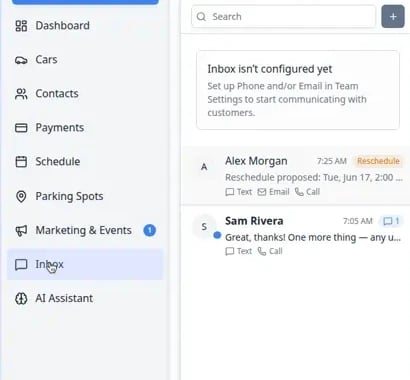
Conversations mark themselves read when you open them
When you click a conversation and read it, Inbox usually marks it as read automatically. Why this matters: The blue dot goes away so your team knows someone has seen the latest message. If you opened the thread but cannot finish the reply, use Mark unread so the next person knows follow-up is still needed.Hand off a conversation with Mark unread
Use Mark unread when you reviewed a message but cannot send the final answer yet.1
Find the customer in the list
On the left side of Inbox, find the customer row.
2
Open the conversation menu
On a computer: right-click the customer’s name.On a phone or tablet: press and hold the customer’s name until a menu appears.
3
Click Mark unread
Click Mark unread.Expected result: The conversation shows as unread again (bold name and blue dot) so the next staff member knows someone still needs to respond.
Helpful team habits
- Read the latest messages before you reply.
- Pause when you see a teammate typing in the same conversation.
- Use Mark unread instead of assuming someone else will remember to follow up.
- Open the related car, invoice, or appointment record when the customer asks about specific work.
- Keep replies focused on one topic so the timeline stays easy to read.
Presence notes are real-time onlyAlex is typing… only appears while another teammate is actively in the same conversation. If your team works in shifts, you may rely more on Mark unread and short verbal handoffs than on typing indicators.
When more than one person monitors Inbox
1
Agree on who answers first
Many facilities assign Inbox to front desk during business hours and to a manager after hours. Write the rule down so everyone knows who should reply.
2
Pause when you see someone typing
If Sam is typing… appears below the customer name, wait a few seconds before sending your own message.
3
Use Mark unread for unfinished work
If you read a message but cannot finish the reply, right-click the customer name and choose Mark unread.Expected result: The blue dot returns so the next person knows follow-up is still needed.
Shift handoff: pass work to the next teammate
When one person starts a reply but cannot finish before a shift change, use a simple handoff so customers do not get duplicate or conflicting answers.1
Finish reading the timeline
Make sure you understand what the customer asked and what was already promised.
2
Mark unread if follow-up is still needed
Right-click (or long-press) the customer name in the list and choose Mark unread.Expected result: The conversation shows a blue dot and bold name for the next person on duty.
3
Tell your teammate out loud or in your team chat
A quick note like “Alex needs Huracan pickup time confirmed—calendar is updated, just needs text” prevents two people from sending different answers.
Get alerts when you are not on the Inbox page
Inbox updates in real time when you are already on the page (Live badge). When you are on Schedule, Cars, or another area, you may still want a ping for new customer messages.1
Confirm facility alerts are on
An admin should review Alerts → Staff in Configure communication settings for Inbox.
2
Set your personal notification preferences
Open your profile menu at the top of the dashboard (your name or avatar), then Notification preferences. Turn on the alerts you want on this device—often browser notifications for new Inbox messages.
3
Allow browser notifications when asked
Your web browser may show a permission prompt the first time. Choose Allow on the computer you use at the front desk.Expected result: A small alert can appear even when Inbox is not the active page—helpful for incoming texts while you are on the calendar.
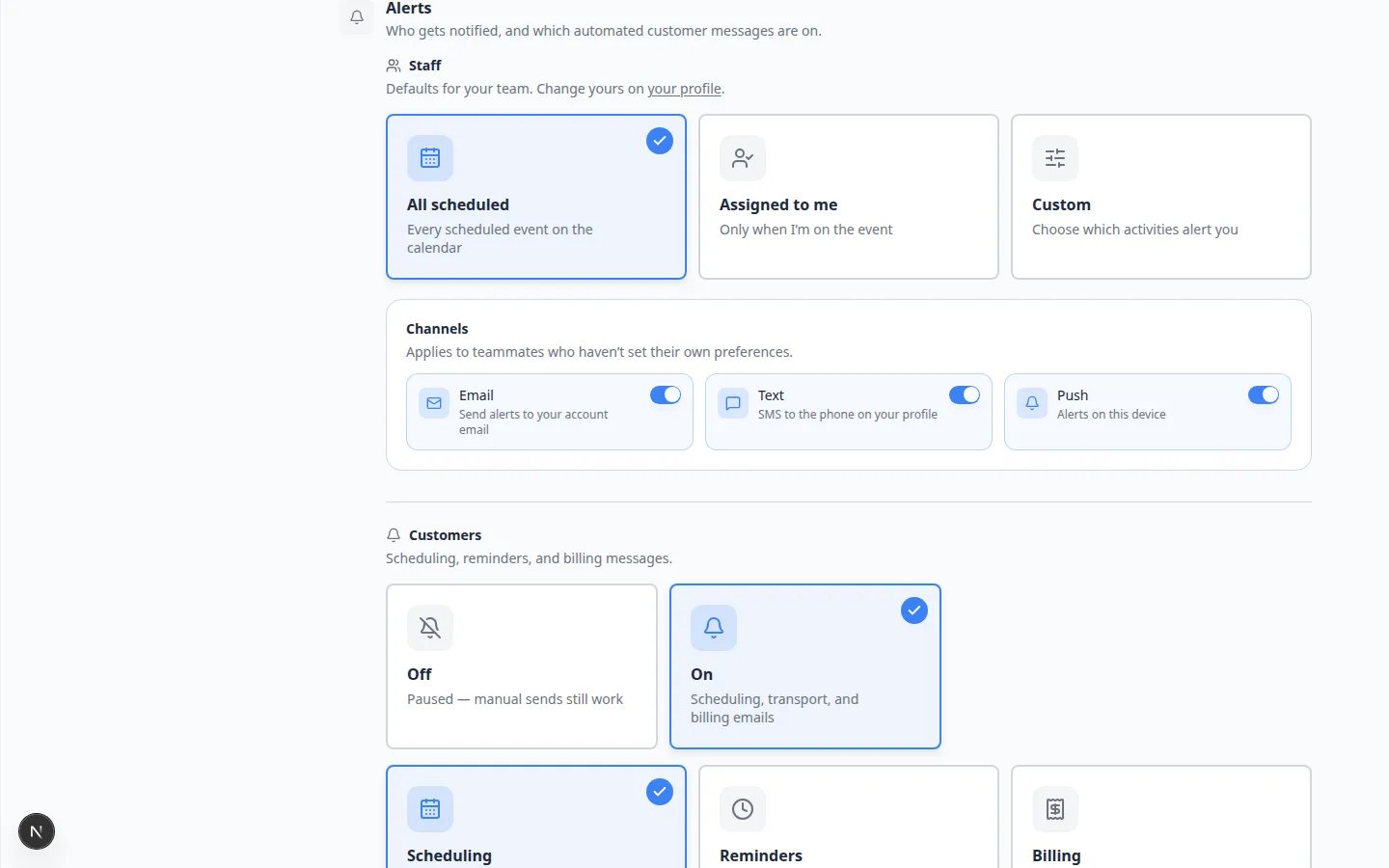
Two layers of alertsFacility settings control what your business can send (for example, whether Inbox alerts are available at all). Personal preferences control what you receive on this computer or phone. Both need to be on for you to get a ping while you are on Schedule.